How to Troubleshoot a Computer That Suddenly Runs Slowly
When you find yourself troubleshooting a Computer That Suddenly Runs Slowly, the experience is often frustrating because it disrupts your workflow without warning. Identifying the root cause requires a systematic approach, moving from simple background tasks to deeper system health checks. By following a logical path, you can often restore your machine’s performance without needing expensive hardware upgrades or professional repair services.
This article provides the actionable steps necessary to isolate software conflicts, resource-heavy processes, and storage issues that typically drag down modern systems. Learning these maintenance habits ensures you remain in control of your digital environment.
Identifying Resource-Heavy Background Processes
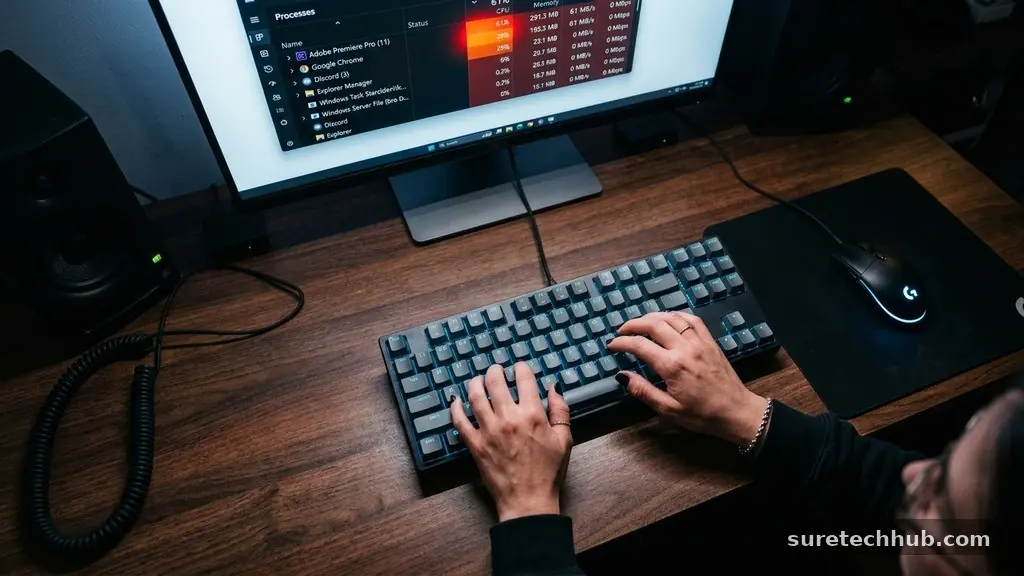
The most common reason for a sudden drop in performance is a runaway process consuming your CPU or memory. When a background service or an application hangs, it can monopolize your hardware resources, leaving very little for the tasks you actually want to perform. You need to look at your system’s activity monitor to see exactly what is happening in real-time.
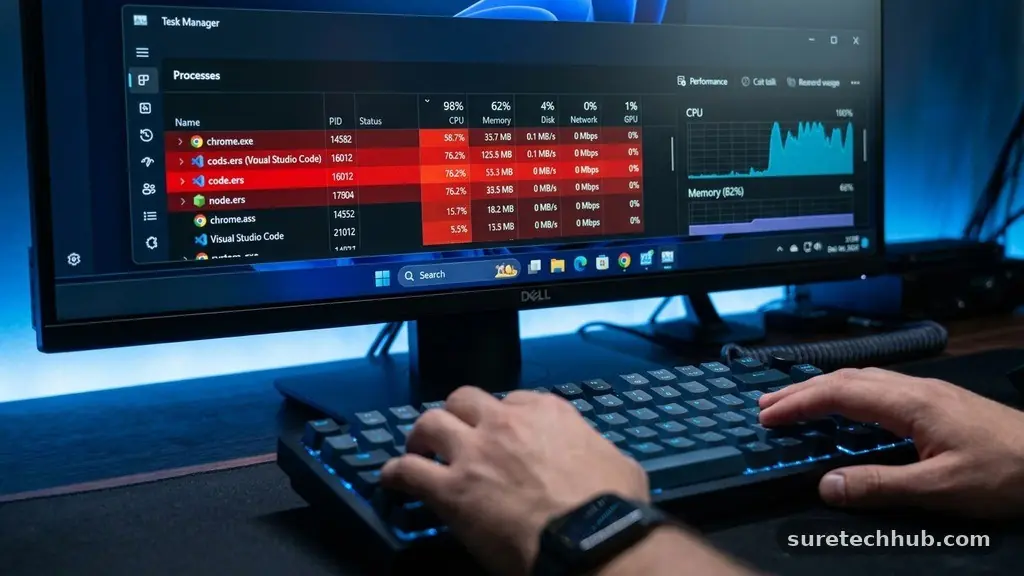
On Windows, the Task Manager is your primary tool for this investigation. Pressing Ctrl+Shift+Esc opens this utility, where you can sort processes by CPU, Memory, or Disk usage.
If you see a process consistently using more than 80% of your CPU, it is likely the culprit behind the sluggish behavior. You can right-click these items to end the task, which often provides an immediate, if temporary, speed boost.
It is helpful to look for programs you do not recognize or those that shouldn’t be running. Sometimes, a browser plugin or a synchronization service gets caught in a loop.
If you see a specific application appearing at the top of the list repeatedly, consider uninstalling it or checking for a software update. Keeping your applications updated is a key part of maintaining system health.
Managing Startup Applications
If your system feels slow immediately after booting up, the issue often lies with the sheer number of programs trying to launch at once. Many applications install themselves to start automatically, which might seem convenient but eventually clutters your system’s startup sequence. Each of these programs competes for your processor’s attention during the crucial first few minutes of use.
You should audit your startup list to disable anything that isn’t essential for your daily workflow. In Windows, the Task Manager has a dedicated “Startup” tab that displays every program configured to run upon login. You will see a column indicating the “Startup impact” of each item, which helps you decide what to keep and what to disable.
Be cautious, however, as disabling essential drivers or security software can cause issues. Stick to disabling peripheral apps like messaging platforms, cloud storage updaters, or gaming launchers that you don’t need until you actually open them. Disabling these items doesn’t uninstall them; it simply prevents them from running in the background until you manually initiate them.
Clearing Storage and Disk Space
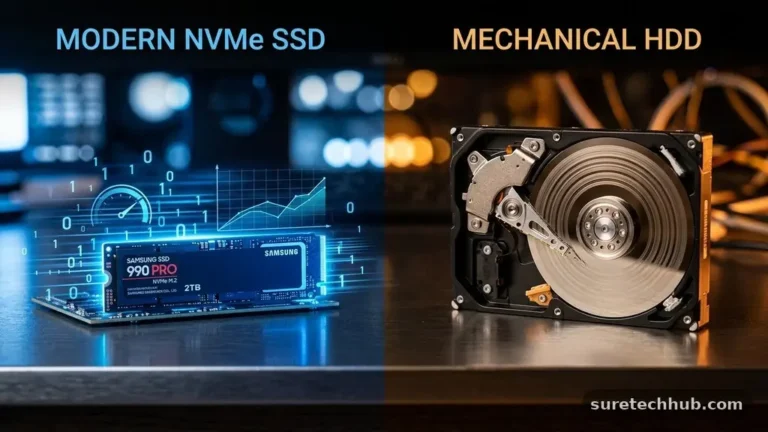
A computer running slow is often a symptom of a nearly full hard drive, especially if you are using an older mechanical drive rather than an SSD. Operating systems require a certain amount of “breathing room” on the drive to manage temporary files and virtual memory. When you are down to the last few gigabytes of space, the system struggles to read and write data efficiently.
Checking your drive health involves looking at how much free disk space is available. If your primary partition is highlighted in red, you need to clear out unnecessary files immediately. Start by emptying your Recycle Bin and removing large files in your Downloads folder that you no longer need.
You can also use built-in tools like Disk Cleanup or Storage Sense to identify temporary files, cache, and system log files that are safe to delete. Consider moving bulky items like high-resolution videos or large photo archives to an external drive or cloud storage. Maintaining at least 15% to 20% of your total drive capacity as free space is a good rule of thumb to keep your system responsive.
Checking for Malware and Security Issues
Sometimes, the cause of a sudden slowdown is not a legitimate program but malicious software running hidden in the background. Malware can hijack your system resources to perform tasks like mining cryptocurrency or sending spam, which puts a heavy load on your hardware. If your computer is running slow and you don’t know why, a full system scan is a necessary troubleshooting step.
Use your preferred security software to run a deep scan rather than a quick one. This ensures that the scanner looks into every nook and cranny of your file system for suspicious activity. If you don’t have third-party software, Windows Defender is highly capable and should be kept up to date through regular system updates.
If a scan finds nothing, you might still consider a secondary opinion using a reputable, on-demand scanner. Sometimes, adware or browser hijackers don’t trigger traditional virus warnings but still degrade your browsing performance. Removing these unwanted programs can often resolve the “sluggish” feeling associated with web-based tasks.
Hardware Limitations and Thermal Issues
While software is often the cause, hardware issues can also lead to sudden performance drops. If your computer generates excessive heat, the processor will automatically throttle its speed to prevent physical damage. This is known as thermal throttling, and it is a common reason for a sudden decrease in system performance during intensive tasks.
Check your computer’s vents to ensure they are not blocked by dust or debris. If you are using a laptop, make sure it is on a hard, flat surface rather than a blanket or pillow, which can trap heat. If you hear your fans spinning at maximum speed constantly, your computer is struggling to stay cool.
| Potential Issue | Common Symptom | Quick Fix |
|---|---|---|
| Overheating | Loud fans, high heat | Clean vents, improve airflow |
| Full Storage | Slow file access | Delete temp files, clear trash |
| High CPU Usage | Stuttering, slow input | End process in Task Manager |
| Memory Bottleneck | Frequent freezing | Close browser tabs, restart |
System Updates and Driver Conflicts
Outdated drivers or a pending Windows update can sometimes cause compatibility issues that manifest as slow performance. When a critical system component doesn’t communicate correctly with your hardware, the operating system works harder to compensate. Running the latest updates ensures that your system has the most recent performance patches and bug fixes.
Go to your system settings to check for available updates. Even if you prefer to postpone them, installing them can often resolve hidden conflicts that cause your computer to feel sluggish. If you have recently updated a specific driver, you might also try rolling it back if the performance issues began immediately after that update.
- Restart your computer to clear temporary memory caches.
- Check for Windows Update to apply the latest patches.
- Update your graphics card drivers if performance drops occur during gaming or video editing.
- Run the built-in system file checker to repair corrupted files.
- Disable unnecessary visual effects if you are on an older machine.
Frequently Asked Questions
Why does my computer suddenly slow down after being fast?
A sudden change usually points to a new background process, a full disk, or an overheating issue. It is rarely a sign of total hardware failure, so start by checking your CPU usage in the Task Manager to see if a single program is hogging your resources.
How much free space do I need on my drive?
Aim to keep at least 15% to 20% of your total drive capacity free. If your drive is nearly full, the operating system cannot effectively manage swap files, which leads to significant performance degradation.
Could a browser extension cause a slow computer?
Yes, browser extensions run in their own processes and can consume significant memory. If your computer only feels slow while browsing, try disabling all extensions and re-enabling them one by one to find the culprit.
Is it time to reinstall my operating system?
Only consider a fresh install as a last resort. Most performance issues can be solved by cleaning up startup programs, clearing disk space, and running full security scans.
Does restarting actually help?
Yes, restarting clears the RAM and stops any frozen background processes that might be lingering. It is the most effective way to start fresh when you are in the middle of troubleshooting a Computer That Suddenly Runs Slowly.
Next Steps for System Stability
Troubleshooting a Computer That Suddenly Runs Slowly is a skill that saves both time and money. By keeping a close eye on your background processes, managing your startup items, and ensuring your storage isn’t reaching its limit, you maintain a healthy environment for your files and programs. Most of these steps take only a few minutes but provide immediate clarity on what is causing the bottleneck.
If you have followed these steps and still notice persistent issues, consider whether your hardware might be reaching the end of its useful life or if you need to add more RAM. Keeping your system tidy is the best way to ensure it remains a reliable tool for your daily work and entertainment. Reach out to local support if you are still stuck, but more often than not, these manual checks will have you back up to speed in no time.