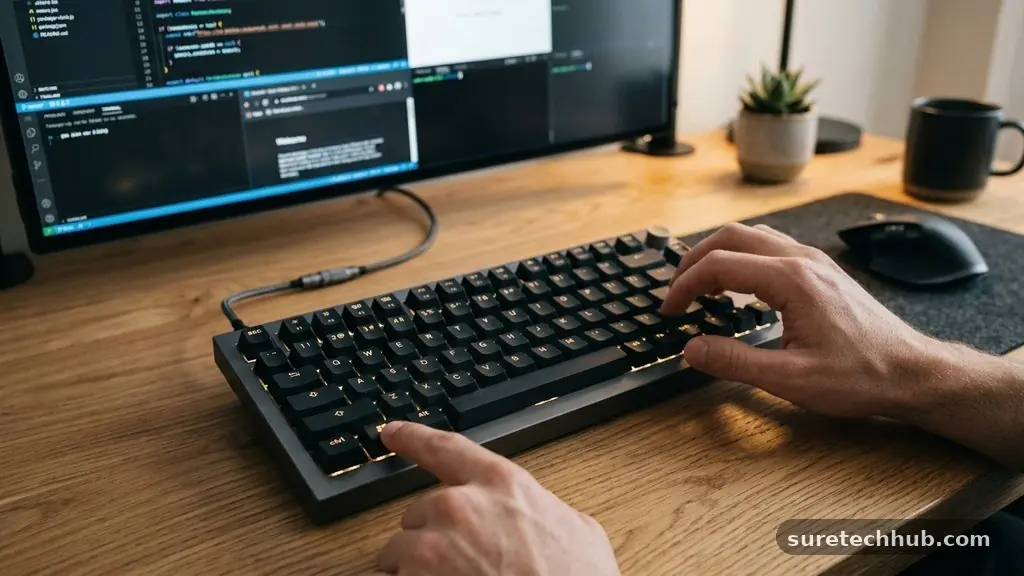
The Most Useful Windows Keyboard Shortcuts for Everyday Tasks
Mastering the Most Useful Windows Keyboard Shortcuts for Everyday Tasks can transform your daily computing experience from a series of mouse-heavy clicks into a fluid, high-speed workflow. By keeping your fingers on the keys rather than hovering over a trackpad, you reclaim seconds that eventually add up to hours of saved time over the course of a work week. This collection focuses on the essential commands that offer the highest return on investment for the average user.
You will learn how to manage windows, navigate file structures, and handle text manipulation with ease. Implementing these habits is the simplest way to improve your efficiency without installing any extra software.
Essential Navigation and Window Management
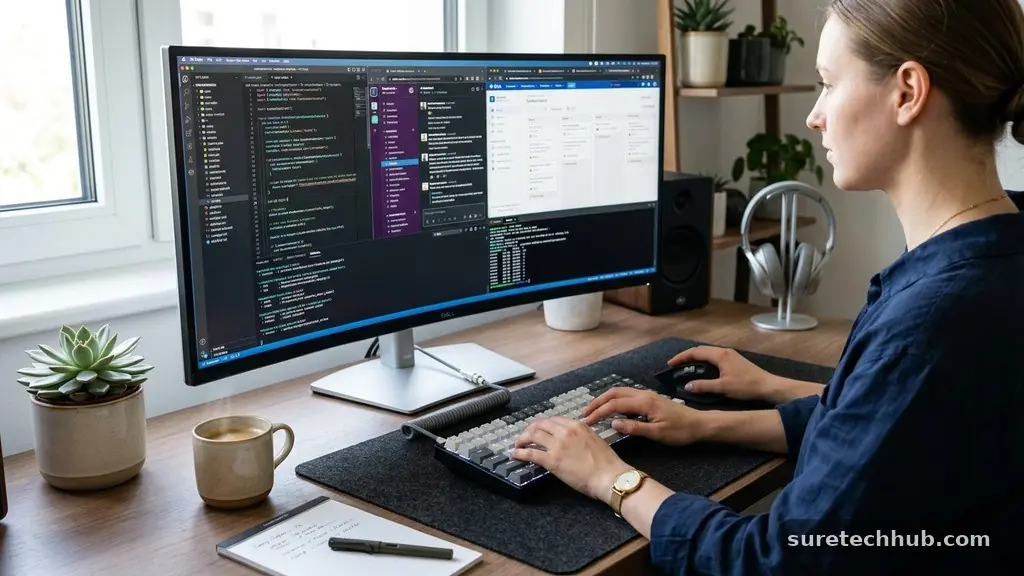
Managing multiple windows is the primary challenge of a modern desktop environment. Instead of dragging your cursor to the edges of the screen to resize or close apps, you can use the Windows key combinations to handle everything instantly. The most versatile command is Win + Arrow keys.
Pressing Win + Left or Right arrow snaps your active window to exactly half of your screen. This allows you to compare two documents side-by-side without manually adjusting borders.
If you are working on a cluttered screen, use Win + D to instantly minimize all open windows and reveal your desktop. Pressing the combination a second time brings everything back exactly as it was.
For those who need to quickly switch between active applications, Alt + Tab remains the gold standard. Holding Alt and tapping Tab lets you cycle through every open program, allowing you to jump from a browser to your email in a split second.
File Explorer Efficiency
File Explorer is the heart of your local data management, and navigating it with a mouse is notoriously slow. The most significant efficiency gain comes from the Win + E shortcut, which instantly launches a new File Explorer window from anywhere.
Once inside a folder, you can use Alt + Left Arrow to navigate back to the previous directory you were viewing. This is far faster than clicking the back button in the top left corner of the window.
When you need to rename a file, stop searching for the context menu. Simply select the file and press F2 to highlight the name for immediate editing.
If you are dealing with a large list of files, Ctrl + Shift + N creates a new folder instantly, saving you from right-clicking and selecting the “New” option. You can find a complete reference for these system-level commands on the official Microsoft support page for Windows keyboard shortcuts.
Text Editing and Productivity Shortcuts
Keyboard shortcuts for text manipulation are lifesavers when drafting reports, emails, or quick notes. While most users know Ctrl + C and Ctrl + V, the real power lies in navigating text by word rather than by character.
Holding Ctrl while pressing the Left or Right arrow keys jumps your cursor across entire words. This lets you reach the end of a sentence or a specific error in a fraction of the time.
Adding the Shift key to these directional commands allows you to highlight text as you move. Pressing Ctrl + Shift + Left or Right highlights entire words, which is significantly faster than dragging a mouse across a paragraph.
If you make a mistake, Ctrl + Z is your universal safety net, undoing your last action across almost every application. For more advanced users, the Windows Clipboard History feature, accessed via Win + V, allows you to view and paste multiple items you have copied recently.
Multitasking with Virtual Desktops
Virtual desktops are an underutilized feature in Windows that can separate your work, personal, and entertainment tasks. You can create a new virtual desktop by pressing Win + Ctrl + D.
Once you have multiple desktops running, use Win + Ctrl + Left or Right arrow to slide between them seamlessly. This is the best way to keep your professional projects isolated from your personal browsing tabs.
If you ever need to close a virtual desktop, use Win + Ctrl + F4 to remove the current workspace. Windows will automatically move any open windows from that closed desktop into your primary workspace so nothing is lost.
This workflow is particularly helpful for those who use a single monitor but feel overwhelmed by too many open applications. Organizing your digital workspace this way reduces cognitive load and keeps your focus sharp.
System Settings and Quick Access
Accessing your system configuration should never require a deep dive into the Start menu. The Win + I shortcut opens the Settings window immediately, providing a direct path to your display, privacy, and update configurations.
If you need to quickly lock your computer when stepping away, Win + L is the fastest way to secure your session. This is a vital habit for maintaining privacy in shared environments or office settings.
For those who rely on external displays, Win + P opens the projection menu, allowing you to switch between extending your screen or duplicating it onto a projector or secondary monitor. This saves you from fumbling with display settings during meetings. The table below outlines how these system shortcuts compare in terms of their primary function and speed of access.
| Shortcut | Primary Function | Time Saved (Estimated) |
|---|---|---|
| Win + E | Opens File Explorer | 3-5 seconds per task |
| Win + I | Opens Settings | 4-6 seconds per task |
| Alt + Tab | Switches windows | 2-4 seconds per task |
| Win + D | Show/Hide Desktop | 3-5 seconds per task |
Commonly Used Utility Shortcuts
There are several miscellaneous shortcuts that solve common daily frustrations. If your screen is cluttered with notifications, Win + N pulls up the notification center and calendar immediately.
For those who take frequent screenshots, Win + Shift + S triggers the Snipping Tool, allowing you to capture a specific region of your screen and copy it to your clipboard instantly. This is far more efficient than taking a full-screen capture and cropping it later.
- Win + . (period): Opens the emoji and symbol panel for quick insertion.
- Win + X: Opens the hidden power-user menu for quick access to Task Manager and Device Manager.
- Ctrl + Shift + Esc: Opens the Task Manager directly to kill unresponsive applications.
- Win + Up Arrow: Maximizes the current window.
- Win + Down Arrow: Minimizes or restores the current window.
These utilities are the “unsung heroes” of the Windows interface. They prevent you from having to search through menus or use the mouse for repetitive tasks like opening the Task Manager or inserting special characters. By integrating these into your muscle memory, you ensure that your focus remains on the content you are creating rather than the tool you are using.
Frequently Asked Questions
How can I remember all these shortcuts effectively?
The best way to learn is to pick two or three shortcuts and force yourself to use them for one full day. Once those become second nature, add two more to your routine. Don’t try to memorize the entire list at once, as that often leads to frustration.
Are these shortcuts consistent across all Windows versions?
Most of the core shortcuts like Alt + Tab, Win + E, and Ctrl + C have remained consistent since Windows 7. While some specialized features like the Snipping Tool or virtual desktops were introduced in later versions, the fundamental logic of the interface remains the same.
Can I create my own custom shortcuts?
Windows does not natively support custom global shortcuts for all actions, but you can assign keyboard shortcuts to specific program icons. Right-click any shortcut icon on your desktop, select Properties, and then click the Shortcut key box to assign a custom combination.
Do these shortcuts work in every application?
Most system-level shortcuts, such as the Win key combinations, work regardless of the active application. However, text editing shortcuts like Ctrl + Shift + Arrow keys depend on whether the specific program supports rich text selection and standard Windows input fields.
What if a shortcut interferes with a specific app’s hotkeys?
In cases where an application uses the same shortcut for a different purpose, the application-specific command usually takes priority. If you need to use the Windows command, you may have to minimize the application or use the mouse until you are back in a standard system environment.
Conclusion
Adopting the Most Useful Windows Keyboard Shortcuts for Everyday Tasks is a journey toward a more efficient and less stressful digital life. By moving away from the mouse and toward the keyboard, you reduce physical fatigue and keep your mental focus on the work at hand. Whether you are managing complex file structures or simply trying to snap windows into place, these commands provide the precision you need.
Start by practicing the handful of shortcuts that apply to your most frequent tasks today. You will likely find that your speed increases significantly within just a few days of consistent use. Continue exploring these tools as your needs evolve, and you will soon find that your computer becomes a truly natural extension of your workflow.