How to Make Your Laptop Faster Without Upgrading Its Hardware
Improving your computer‘s performance often feels like a chore, but you can achieve significant speed gains just by optimizing your existing software. Many users assume that sluggishness means it is time for a new device, yet the reality is that most performance issues stem from cluttered storage and inefficient system settings.
By focusing on how to make your laptop faster without upgrading its hardware, you can reclaim lost speed and extend the lifespan of your machine. This process involves managing background processes, cleaning up temporary data, and refining your startup routines to ensure your resources are dedicated to the tasks you actually care about.
Managing Startup Programs and Background Processes
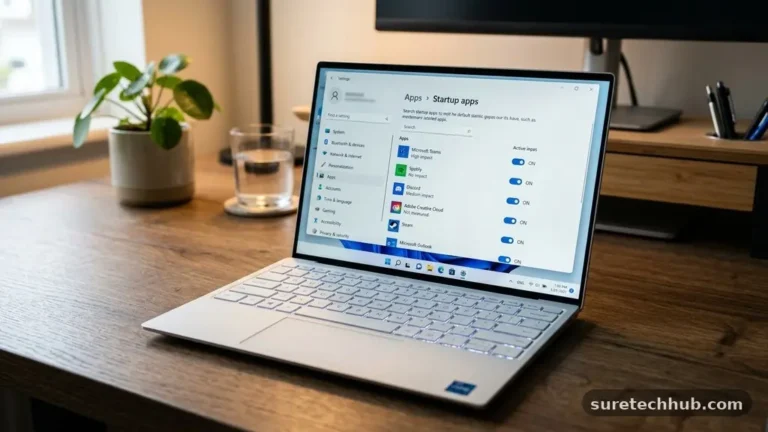
The most common reason for a slow computer is the sheer volume of applications that attempt to launch the moment you press the power button. When you install new programs, many of them register themselves to start automatically, quietly consuming memory and processing power even if you never open them.
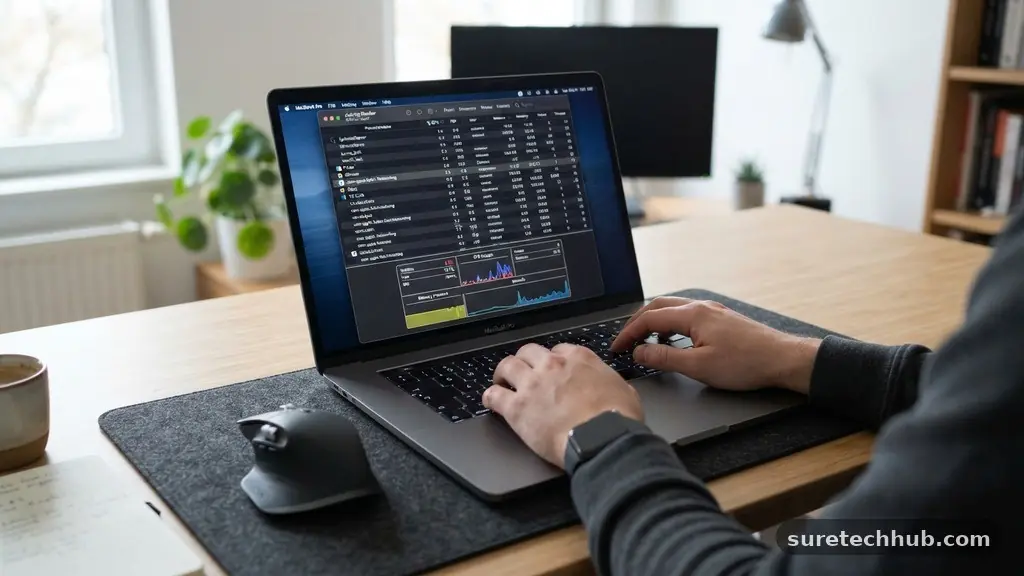
You can easily view these culprits by opening the Task Manager on Windows or the Users & Groups settings on macOS. Disabling unnecessary startup items is the single most effective step you can take to reclaim speed.
Focus on identifying apps that you do not need to use immediately upon login, such as cloud storage updaters, gaming platforms, or update checkers. Keep essential drivers and security software enabled, but feel free to turn off everything else.
This reduces the initial load on your processor during boot time, leading to a much snappier experience when you first arrive at your desktop. You will notice that your system feels responsive almost instantly rather than waiting for background tasks to finish loading.
Beyond startup apps, background processes can continue to drain resources long after the computer has booted. Modern operating systems are designed to manage these tasks, but they often struggle when too many third-party services are left running.
Use the performance tab in your system monitor to identify which apps are consuming the highest percentage of your CPU or RAM. If you see a program you rarely use sitting at the top of the resource list, it is likely time to uninstall it entirely or prevent it from running in the background.
Clearing Temporary Files and Storage Clutter
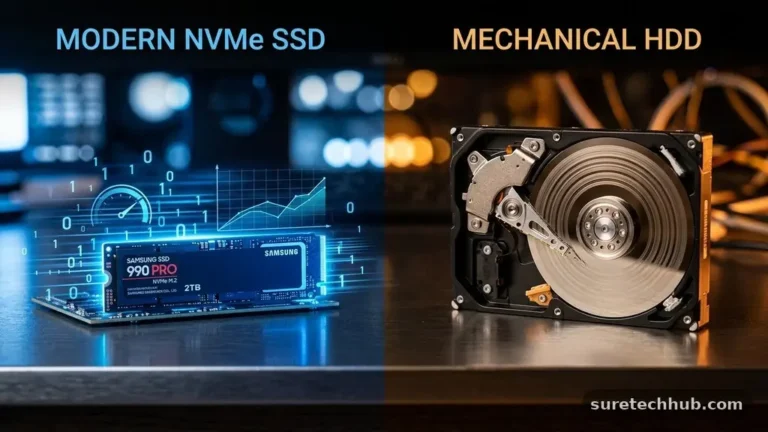
Your operating system generates a vast amount of temporary data to help applications run more efficiently, but these files often accumulate and never get deleted. Over time, this digital debris can occupy gigabytes of space, potentially slowing down drive access times, especially on older mechanical hard drives.
Clearing out these files is a straightforward way to make your laptop faster without upgrading its hardware. You can use built-in tools like Disk Cleanup on Windows or simply manage your storage settings to remove system logs, temporary internet files, and installation leftovers.
Be methodical when deleting files to ensure you do not remove anything critical. Start by emptying your Recycle Bin and clearing your browser cache, as these are often the largest sources of unnecessary data.
You should also look for large, forgotten files such as old video projects, high-resolution photos, or downloaded installers that you no longer require. Moving these to an external drive or a cloud storage service provides the dual benefit of freeing up space and organizing your digital life.
Consider the following table to understand how different types of junk files impact your system performance:
| File Type | Impact on Speed | Recommended Action |
|---|---|---|
| Browser Cache | Moderate | Clear monthly |
| Temporary Installers | Low | Delete immediately after use |
| System Log Files | Low to Medium | Use Disk Cleanup tool |
| Duplicate Media Files | High (if drive is near full) | Review and delete |
Updating Your Operating System and Drivers
Software optimization is a continuous process, and manufacturers frequently release updates that specifically address performance bottlenecks. Keeping your system current is vital because these updates often contain patches for memory leaks or inefficient code that caused your machine to struggle in the past.
While some users fear that newer updates might make an older laptop slower, they are usually designed to improve stability and security. You can find more information on the importance of these updates at the official Microsoft Windows support site.
Beyond the OS itself, your hardware drivers act as the bridge between your physical components and your software. Outdated graphics or chipset drivers can lead to stuttering, visual glitches, or general sluggishness during everyday use.
Visit the manufacturer’s website for your specific laptop model to check for the latest driver versions. Installing the correct, manufacturer-verified drivers ensures that your hardware is communicating effectively with your software, which is a key component of making your laptop faster without upgrading its hardware.
Adjusting Visual Effects for Performance
Modern operating systems are packed with animations, shadows, and transparency effects designed to make the interface look modern and sleek. While these features are aesthetically pleasing on powerful machines, they can significantly tax the processor and graphics memory on older or budget-friendly laptops.
You can sacrifice some of these visual flourishes to gain a noticeable boost in system responsiveness. By navigating to your system’s performance settings, you can choose to adjust for “Best Performance” rather than “Best Appearance.”
Turning off features like window animations, menu shadows, and smooth font edges will make the interface feel less fluid but significantly more reactive. You might notice that windows snap open and close instantly, and menus appear without the slight delay of a fading animation.
This is a purely cosmetic trade-off that yields tangible results, especially on systems with limited integrated graphics. For many users, the improved speed of interaction far outweighs the loss of minor aesthetic polish.
Managing Web Browser Performance
For most people, the web browser is the primary tool used on a laptop, and it is often the single largest consumer of system resources. Browsers like Chrome or Edge are incredibly powerful, but they can easily consume gigabytes of RAM if you keep dozens of tabs open simultaneously.
The most effective way to manage this is to cultivate better browsing habits, such as using tab-suspending extensions. These tools automatically put inactive tabs into a “sleep” mode, freeing up memory for the tasks you are currently performing.
Furthermore, you should regularly audit the extensions you have installed in your browser. Every active extension runs its own code in the background, which can slow down page loading and increase the time it takes for the browser to launch.
Remove any extensions that you do not use daily. You will likely find that your browser feels lighter and more efficient after cleaning out the bloatware that has accumulated over months of browsing.
Utilizing Power Management Settings
Laptops are specifically designed to balance performance with battery life, often prioritizing energy savings by throttling the CPU speed. If you are plugged into a wall outlet, you should ensure your power plan is set to “High Performance” rather than “Balanced” or “Power Saver.”
This setting allows the processor to run at higher clock speeds for longer durations, which is essential for demanding tasks. You can usually toggle this directly from the battery icon in your taskbar.
Note that using high-performance settings will drain your battery faster when you are not connected to power. Therefore, it is a good practice to switch back to a balanced mode when you are working on the go.
This level of granular control is a simple way of making your laptop faster without upgrading its hardware. It ensures that you are dictating how your machine uses its energy, rather than letting default settings dictate your potential speed.
Identifying and Removing Malware
Sometimes, a laptop feels slow simply because it is carrying an invisible burden. Malicious software, including adware and spyware, can run silently in the background, hijacking your system resources to display ads or perform unauthorized tasks.
Even if you do not suspect a virus, running a thorough scan with a reputable security tool is a necessary maintenance step. If the scan finds anything, removal is often the fastest way to restore your machine to its original performance levels.
Be wary of “system optimizer” tools that claim to fix all your speed issues with one click. Many of these programs are themselves bloated or even malicious, often doing more harm than good to your system registry.
Stick to well-known, trusted security software and avoid downloading software from unverified sources. Maintaining a clean system environment is just as important as managing your installed programs and files.
Essential Maintenance Checklist
To keep your system running at its peak, consider adopting a regular maintenance schedule. Consistency is key when dealing with software performance, as it prevents the long-term buildup of junk files and process bloat. Here are the steps you should perform on a recurring basis to keep your machine in top shape:
- Run a disk cleanup utility once a month to remove temporary files.
- Check for and install system updates every two weeks.
- Review your startup app list whenever you install a new, large program.
- Clear your browser cache and review installed extensions every few months.
- Perform a full security scan if you notice any unusual behavior or unexpected slowdowns.
- Restart your laptop at least once every few days to clear the RAM and reset background services.
Frequently Asked Questions
Is a seven-year-old laptop too old to speed up?
While a seven-year-old laptop will never match the raw speed of a modern machine, you can definitely make it more usable for basic tasks. By stripping away unnecessary software and optimizing your background processes, you can eliminate the lag that makes older machines feel unusable. Focus on light web browsing and text-based work to get the most out of an aging device.
Does clearing the cache really make a difference?
Yes, clearing the cache helps, especially if your browser has become sluggish over time. When a cache becomes too large, the browser must search through thousands of small files to load a webpage, which can eventually lead to performance degradation. Clearing it gives the browser a fresh start and can resolve issues where websites are not loading correctly.
Are third-party “PC booster” apps worth using?
In almost all cases, you should avoid third-party “PC booster” or “registry cleaner” apps. These programs often create more problems than they solve and can introduce their own bloatware to your system. Everything these tools claim to do can be achieved manually using the tools already built into your operating system, which is safer and more reliable.
How often should I restart my laptop?
Restarting your laptop every few days is a great habit for maintaining speed. A full restart flushes the RAM, kills stuck background processes, and ensures that your system updates are properly applied. If you find your computer getting slower as the day goes on, a quick restart is usually the fastest solution to restore normalcy.
What is the most common cause of a laggy laptop?
The most common cause is usually an accumulation of startup programs that run in the background. Many users have dozens of apps launching at once without realizing it, which creates a massive bottleneck right from the moment of login. Simply managing your startup list is usually the first and most impactful step to fixing a laggy system.
Final Thoughts on System Optimization
Optimizing your computer is a rewarding process that proves you do not always need a new machine to enjoy a fast experience. By taking control of your startup items, clearing out unnecessary data, and keeping your software updated, you can significantly enhance your daily productivity. These methods for making your laptop faster without upgrading its hardware are not just about speed; they are about maintaining a clean and efficient workspace.
Start by applying one or two of these tips today, and you will likely notice an immediate improvement in how your laptop handles your daily tasks. With consistent care, your current device can remain a capable and reliable tool for a long time to come.