How to Improve Your Home Wi-Fi Without Buying a New Router
Improving your home Wi-Fi without buying a new router is often a matter of physics and configuration rather than hardware limitations. Many users assume their equipment is failing when, in reality, it is simply being stifled by environmental interference or suboptimal placement. By adjusting how your devices interact with your existing network, you can often unlock significant performance gains without spending a dime.
This approach saves money and reduces electronic waste while ensuring your connection is as stable as possible. You will gain a much clearer understanding of how radio waves move through your home and how to manipulate your environment to get the most out of the gear you already own.
Optimizing Router Placement

The most effective way to boost your wireless coverage is to change where your router sits. Many people hide their hardware in a closet, behind a television, or inside a cabinet to keep the room looking tidy. This is a major mistake because these objects act as physical barriers that absorb or reflect radio signals.
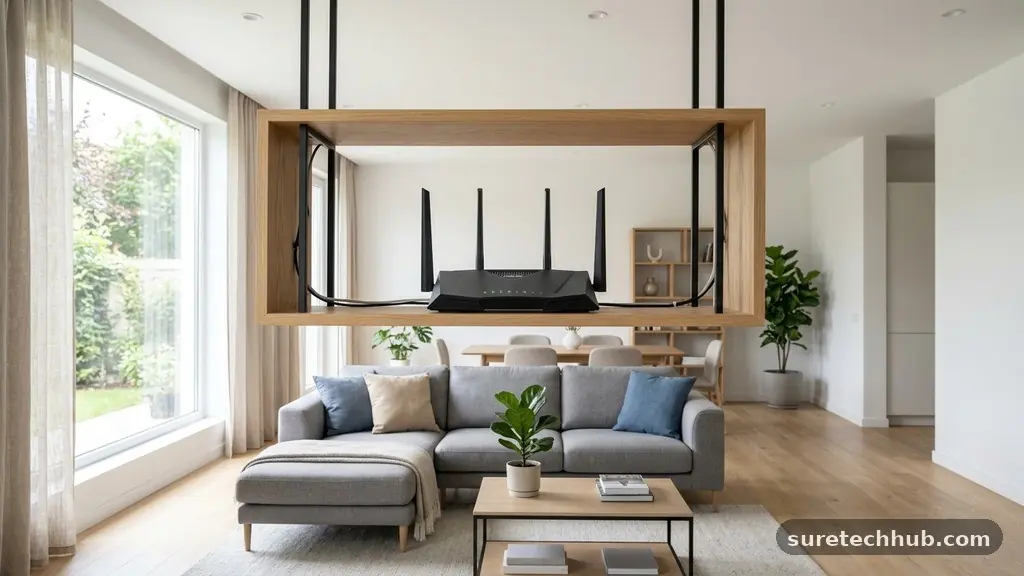
Your router should ideally be placed in a central, elevated location, such as on a high shelf or a tabletop. Keeping it away from walls and large metal objects prevents signal attenuation and allows the waves to travel freely through the air.
Concrete walls, brick, and even large mirrors are notorious for blocking Wi-Fi signals. If your router is tucked away in a corner of your house, the signal has to travel through more material to reach your bedroom or living room.
You should aim to place the unit in an open space where it has a clear line of sight to the areas where you use your internet-connected devices the most. Even moving a router just a few feet can make a noticeable difference in signal strength and speed.
Metal objects are particularly detrimental to performance because they reflect radio waves and create dead zones. Avoid placing your equipment near metal filing cabinets, large appliances like refrigerators, or even thick decorative metal screens.
If you have a multi-story home, placing the router on the middle floor often provides better coverage than leaving it on the ground floor. Remember that radio waves tend to radiate outward and slightly downward, so height is your best friend when trying to distribute signal effectively across multiple levels.
Managing Frequency Bands
Modern routers typically offer two frequency bands: 2.4 GHz and 5 GHz. Understanding the difference between these two is key to improving your home Wi-Fi without buying a new router.
The 2.4 GHz band is better at traveling through walls and solid objects, but it is prone to interference from other household electronics. Microwaves, cordless phones, and even Bluetooth devices can create noise that slows down your connection on this specific frequency.
The 5 GHz band, on the other hand, offers much faster speeds but has a shorter range. It is less susceptible to interference because it is not as crowded as the 2.4 GHz spectrum. You should check your router settings to see if you can manually assign devices to specific bands.
For example, keep your high-bandwidth devices like gaming consoles or streaming sticks on the 5 GHz band. Reserve the 2.4 GHz band for devices that are further away from the router or that do not require high speed, such as smart home sensors or lightbulbs.
If your router supports “band steering,” it might automatically try to move devices between these frequencies. While this is helpful, it doesn’t always make the right choice for your specific layout. Logging into your router’s administrative console allows you to experiment with these settings.
You can often rename your networks so that you can manually select the best frequency for each device. This level of control ensures that your most important tasks are always handled by the most efficient part of your connection.
Reducing Wireless Interference
Wireless signals are essentially invisible data streams that can be interrupted by other electronic devices. Beyond the obvious culprits like microwaves, neighboring Wi-Fi networks can also degrade your performance.
If you live in an apartment building, your neighbors’ routers might be broadcasting on the same channel as yours. This is like trying to have a conversation in a room where everyone else is shouting at the same time.
Most routers are set to “auto” for channel selection, but this feature doesn’t always find the quietest path. You can use free network analyzer apps on your smartphone to see which channels are currently crowded in your area.
Once you identify a less congested channel, you can log into your router’s settings and set it manually. Switching from a crowded channel to an empty one can dramatically improve your connection stability and speed.
Common sources of interference that you should try to keep away from your router include:
- Baby monitors operating on the 2.4 GHz frequency.
- Cordless landline phones that share the same wireless spectrum.
- Large glass surfaces or aquariums, which absorb radio signals.
- Smart home hubs that communicate using similar wireless protocols.
- Bluetooth speakers and peripherals located right next to the router.
Updating Firmware and Settings
Software updates are often overlooked, yet they can provide significant improvements to hardware performance. Manufacturers frequently release firmware updates that fix bugs, improve security, and optimize how the router handles traffic.
You should check your router manufacturer’s website to see if there is an update available for your specific model. While many modern routers update automatically, performing a manual check is a proactive way to ensure you aren’t running outdated, inefficient code.
Beyond just updating the firmware, you can adjust specific traffic management settings. Many routers have a feature called Quality of Service (QoS) that allows you to prioritize certain types of traffic.
If you work from home, you can set your video conferencing software to have higher priority than file downloads. This ensures that your work calls remain clear even if someone else in the house is streaming a movie.
You can also look for settings related to “channel width.” In some cases, wider channels (like 40 MHz or 80 MHz) can provide faster speeds, but they are also more susceptible to interference. If you are experiencing frequent drops, switching to a narrower channel width might provide a more stable connection.
It is worth experimenting with these settings one at a time to see how they impact your daily usage. You can find detailed information on how these technical standards work at the Federal Communications Commission website.
Comparing Connection Methods
Not everything in your house needs to be on Wi-Fi. By offloading static devices onto a wired connection, you free up wireless bandwidth for your mobile devices.
Desktop computers, smart TVs, and gaming consoles often have Ethernet ports that provide a much more reliable connection than wireless. Even using a simple powerline adapter can turn your home’s electrical wiring into a network path, bypassing the need for a long, unsightly Ethernet cable running across the floor.
When you move stationary devices to a wired connection, you immediately reduce the “airtime” demand on your router. This allows your Wi-Fi to focus its resources on devices that actually need to move around the house, like your phone or tablet. The following table provides a quick look at why wired connections are often superior for fixed hardware.
| Feature | Wi-Fi Connection | Wired (Ethernet) |
|---|---|---|
| Stability | Variable/Interference-prone | High/Consistent |
| Latency | Higher/Fluctuating | Extremely Low |
| Setup Effort | Low | Moderate (requires cables) |
| Bandwidth | Shared/Congested | Dedicated |
Addressing Common Questions
Does a range extender help if I don’t want a new router?
A range extender is a separate device that repeats your existing signal. While it doesn’t replace your router, it acts as a bridge to push the signal into dead zones. They are relatively inexpensive and can be a good compromise if moving your router isn’t an option.
What blocks Wi-Fi signals the most?
Dense materials like concrete, brick, and stone are the biggest obstacles to signal propagation. Water is also a significant barrier, which is why large aquariums or even high humidity can impact your performance. Metal objects should also be avoided as they reflect the signal rather than letting it pass through.
Why is my Wi-Fi slow only in one room?
This is usually due to distance or physical obstructions between that room and your router. If you have to go through multiple walls or a floor to reach that room, the signal strength drops significantly. Try moving your router closer to that area or clearing the path of any large metal objects.
Can I improve gaming performance without new hardware?
Yes, prioritize your gaming device in your router’s Quality of Service settings. Additionally, using a wired Ethernet connection for your console or PC will almost always provide a better experience than relying on wireless. Closing background applications that use bandwidth on other devices will also help.
How do I know if my router is actually the problem?
If you have tried all the placement and channel adjustments and still face issues, your router might be failing or simply outdated. You can test this by running a speed test while standing right next to the router. If the speed is still poor, the issue is likely with the device or your internet service provider.
Next Steps for Better Connectivity
Improving your home Wi-Fi without buying a new router is a rewarding process that combines technical troubleshooting with simple home organization. You have learned that the location of your hardware, the frequency band you choose, and the way you manage your devices all play a massive role in signal quality. Taking the time to clear away obstructions and manually selecting the best channels can turn a frustrating connection into a smooth, reliable experience.
Start by checking your router’s placement today, as that single step often solves the majority of signal issues. Once you have optimized the physical environment, dive into your router’s interface to ensure you are using the most efficient settings available. If you continue to face challenges, don’t hesitate to reach out to your internet service provider to ensure the signal coming into your home is performing as expected.