USB-C Explained: What It Can Do Beyond Charging
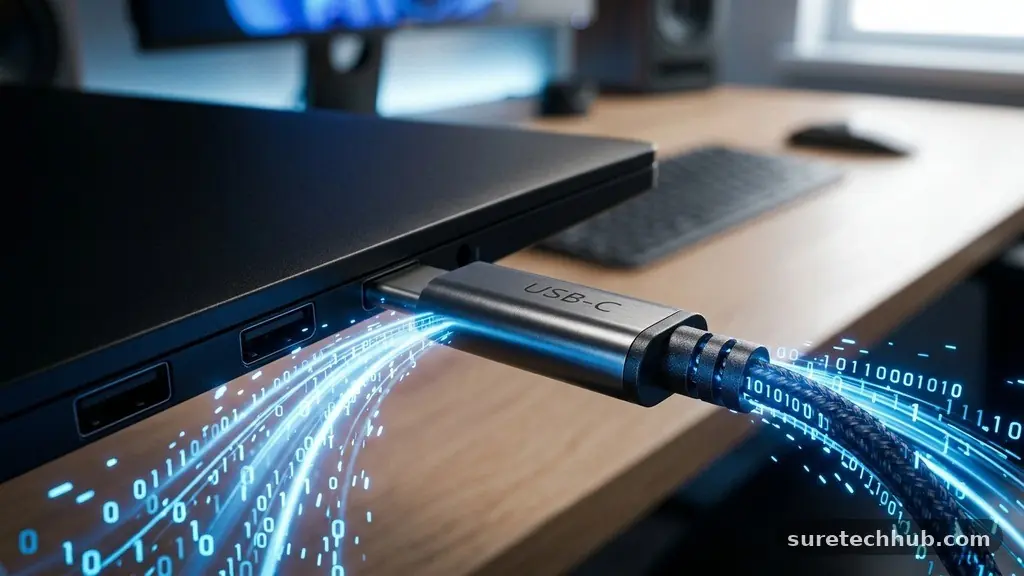
When you see a small, oval-shaped port on your laptop or smartphone, it is easy to assume it is just for power. Having USB-C explained reveals that this connector is actually a versatile digital Swiss Army knife capable of far more than just replenishing a battery.
By understanding the underlying architecture of this universal standard, you can turn a single port into a gateway for high-speed data, external displays, and complex peripheral ecosystems. This article explores how you can leverage your hardware to its full potential, moving well beyond basic charging tasks to optimize your digital workflow.
Data Transfer Capabilities
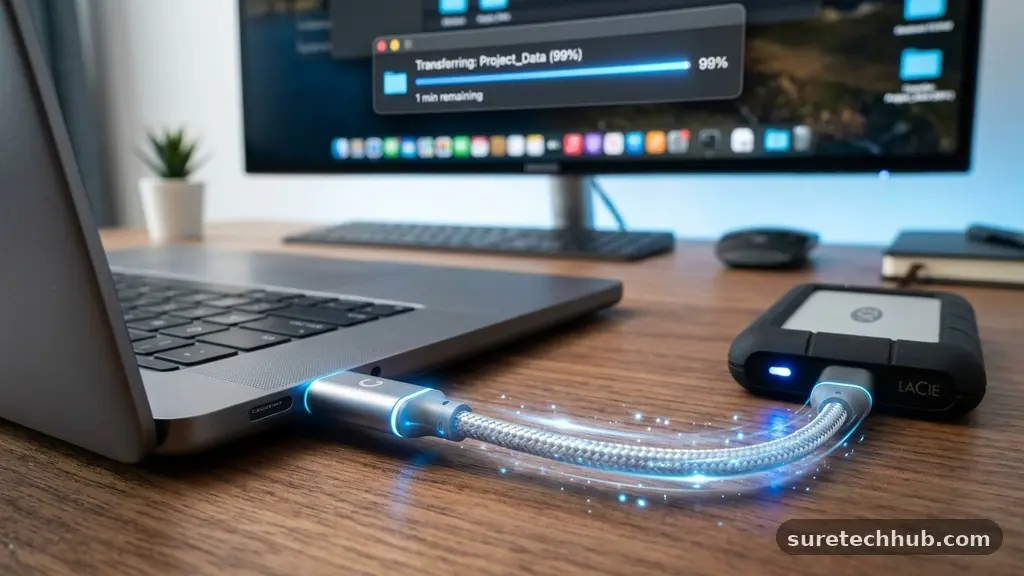
The primary function of the USB-C protocol, beyond simply moving electrons, is the high-speed exchange of digital information. Unlike older USB-A ports, which were often limited to slow transfer speeds, modern USB-C cables can move gigabytes of data in mere seconds. This capability relies on the internal wiring of the cable and the controller chip inside your device.
If you use a cable designed only for power, you will notice significantly slower speeds when moving files. Always look for the “SuperSpeed” or “Thunderbolt” branding on your peripherals to ensure you are getting the bandwidth you paid for.
High-speed data transfer is particularly useful for creative professionals who regularly move massive raw video files or high-resolution photo libraries. When you connect an external NVMe solid-state drive to a USB-C port, you are essentially creating a temporary extension of your computer’s internal storage.
This allows for direct editing from the drive without needing to copy files back and forth. You are essentially bypassing the bottleneck that traditionally plagued external hard drives.
Understanding Data Protocols
It is vital to distinguish between the physical connector and the protocol it supports. A USB-C cable is just the physical shape; the speed is determined by whether the connection is USB 3.1, 3.2, or the much faster USB4.
You might plug a device in and find it works, but the file transfer takes an eternity because the cable is only rated for USB 2.0 speeds. Always verify the specifications on the packaging of your cables.
Display Output and Video Support
One of the most impressive features of this connector is its ability to handle “DisplayPort Alt Mode.” This feature allows a single USB-C cable to transmit a high-definition video signal directly to a monitor.
You no longer need to carry around bulky HDMI or DisplayPort cables if your monitor supports a USB-C input. This simplifies your desk setup, as the same cable that sends video to the screen can often provide power back to your laptop.
This functionality is a massive benefit for people who use multiple monitors in their workspace. By using a docking station or a daisy-chainable monitor, you can connect your entire desk setup with a single cable.
When you sit down at your desk, you plug in one wire, and your screen, keyboard, mouse, and power supply are all active instantly. This is the definition of a modern, efficient workstation.
| Connection Type | Primary Function | Video Support |
|---|---|---|
| USB-C (USB 2.0) | Basic Data/Charge | No |
| USB-C (USB 3.2 Gen 2) | High-Speed Data | Yes (Alt Mode) |
| Thunderbolt 3/4 | Max Data/Display | Yes (Dual 4K) |
Power Delivery and Device Expansion
USB-C Power Delivery, or PD, is the technology that allows the connector to negotiate how much voltage and current a device requires. Instead of a fixed output, the charger and the device communicate to determine the safest and fastest charging rate.
This negotiation happens in milliseconds, ensuring that a high-wattage laptop charger doesn’t damage a small smartphone. It is a smart system that makes the dream of a single universal charger for all your gadgets a reality.
Beyond charging your own devices, this technology allows for complex peripheral expansion. You can plug a USB-C hub into your laptop to gain access to legacy ports like SD card readers, Ethernet jacks, and traditional USB-A ports.
These hubs act as a bridge between the new standard and the older hardware you might still have lying around. It keeps your setup tidy while ensuring you don’t lose the ability to use your older accessories.
- Universal Compatibility: One cable for phones, tablets, and laptops.
- Reversible Design: No more fumbling to find the right side up.
- Power Negotiation: Prevents overcharging and optimizes energy delivery.
- Daisy-Chaining: Connect multiple monitors or drives in a single series.
- Compact Size: Enables thinner, more portable laptop designs.
Thunderbolt Integration
While many people use the terms interchangeably, Thunderbolt is a specific, high-performance implementation of the USB-C connector. Developed by Intel and Apple, Thunderbolt 3 and 4 offer bandwidth speeds of up to 40Gbps, which is far superior to standard USB-C implementations.
These cables are essential if you are using external graphics cards or high-resolution professional displays. They look identical to standard cables, but they contain active chips that manage high-frequency data signals.
If you are a gamer or a video editor, Thunderbolt is the gold standard for your external hardware. It allows you to transform a thin, lightweight laptop into a powerhouse by connecting an external GPU enclosure.
This setup provides desktop-class performance while allowing you to detach and remain mobile when you leave the office. You can find more technical details on these standards at the USB Implementers Forum, which maintains the official specifications for all USB technology.
The Differences Between Cables
Not all USB-C cables are created equal, and this is where most users run into trouble. Some cables are “passive,” meaning they just carry signals, while others are “active,” containing tiny chips to boost data integrity over longer distances.
A cable that is two meters long might have slower data speeds than a half-meter cable unless it is specifically designed to handle the signal loss. Furthermore, some cables are strictly for power, with no data wires inside at all.
You should always check for the “e-marker” chip in a cable if you need it to handle high-wattage charging, typically above 60 watts. This chip tells the charger that the cable is safe to handle the increased current.
If you use a cheap, non-certified cable for a high-power laptop, it might charge slowly or, in rare cases, overheat. Investing in quality, certified cables is the single best way to ensure your hardware lasts longer.
Future-Proofing Your Setup
As we move toward a future dominated by USB-C, the ecosystem will only become more integrated. We are already seeing the standard adopted by cameras, portable game consoles, and even home appliances.
By adopting this standard now, you are essentially future-proofing your home office. You will spend less money on proprietary chargers and more time enjoying the convenience of a unified hardware environment.
Think of your cable collection as a long-term investment. Instead of buying cheap, disposable cables that fray after a few months, consider buying high-quality, braided cables that support the latest standards.
These will likely outlast the devices you are currently using. When you eventually upgrade to a new phone or laptop, your existing cable infrastructure will remain relevant and capable.
Frequently Asked Questions
Can I use any USB-C cable for my laptop?
Technically, you can plug any USB-C cable into your laptop, but it might not provide enough power to charge it. You must ensure the cable and the power brick both support the wattage requirements of your specific laptop model.
Why does my USB-C cable charge slowly?
Slow charging is usually caused by a cable that is not rated for the high power delivery your device requires. Additionally, if the cable is too long or of poor quality, it may experience voltage drop, leading to slower charging speeds.
Are all USB-C ports the same speed?
No, the speed depends on the internal controller of the device. A USB-C port on a budget smartphone will usually be significantly slower than a Thunderbolt 4 port on a premium professional laptop.
Can I connect a monitor to any USB-C port?
Only if the device’s USB-C port supports “DisplayPort Alt Mode.” Many budget devices include a USB-C port for data and charging but do not include the necessary wiring to output a video signal.
Is it safe to leave a USB-C charger plugged in?
Yes, modern USB-C chargers are designed to communicate with your device and cut off power once the battery is full. They are safe to leave plugged into a wall outlet when not in use, provided the hardware is from a reputable manufacturer.
Conclusion
Having USB-C explained as more than just a power port opens up a world of possibilities for your digital life. From high-speed data transfers and professional-grade video output to the sheer convenience of a universal connector, this technology is the backbone of modern hardware. By selecting the right cables and understanding the capabilities of your specific ports, you can simplify your workflow and eliminate unnecessary clutter.
Take a moment to audit your current cables and devices to see where you can optimize your setup. Investing in high-quality, certified hardware will save you time and frustration in the long run.
Embrace the versatility of this standard and you will find that your devices work together in ways that were impossible just a few years ago. Reach out if you have specific questions about your hardware configuration, as there is always more to discover about the potential of your gear.