How to Remove Unwanted Programs From Windows: A Practical Manual
Learning the process of removing unwanted programs from Windows is a vital skill for maintaining system speed and security. Over time, your machine naturally collects software clutter that consumes disk space and background resources. By systematically cleaning out applications you no longer use, you can improve boot times and free up valuable storage.
This process, often referred to as managing your installed apps, ensures that only the tools you actually need are active on your computer. Whether you are dealing with pre-installed bloatware or software you downloaded months ago and forgot, understanding these steps will help you keep your operating system performing at its peak efficiency.
Using the Built-in Settings App
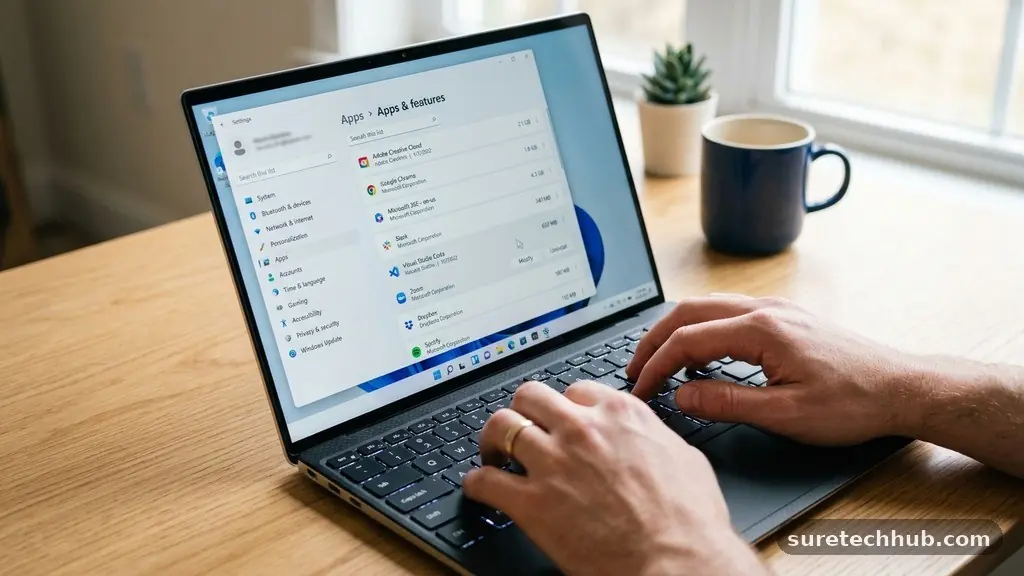
The modern way to manage your software in Windows 10 and 11 is through the Settings menu. This interface is designed to be user-friendly, allowing you to quickly identify and remove applications.
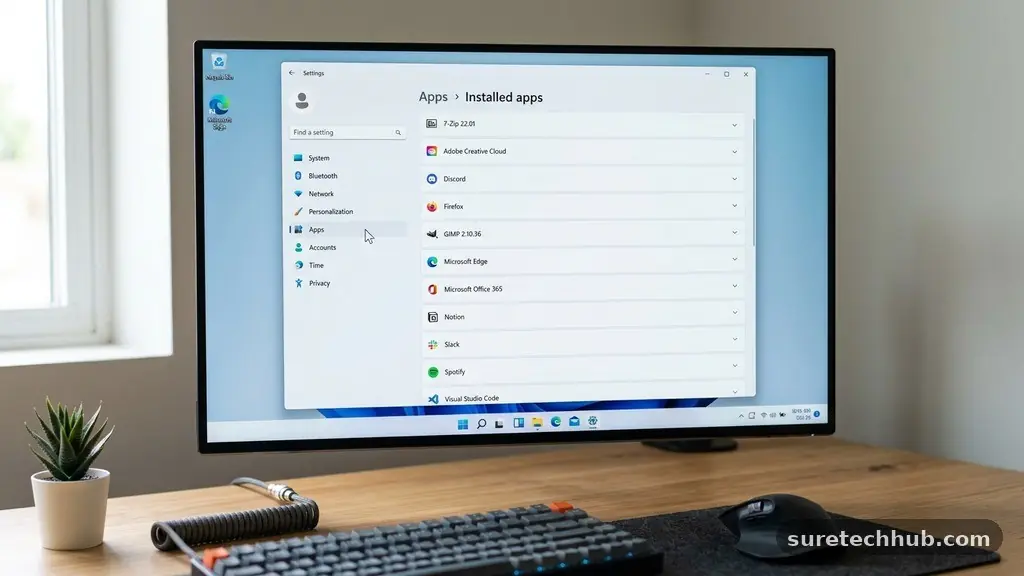
To begin, click the Start button and select the gear icon to open Settings. From there, navigate to the Apps category, where you will see a list labeled “Installed apps” or “Apps & features.”
Once you are in this view, you can search for a specific program using the search bar at the top of the list. If you are not sure what you want to remove, you can sort the list by size or date installed to spot large, forgotten software.
When you find an item you no longer need, click the three-dot menu next to it and select “Uninstall.” Windows will then prompt you to confirm your choice, and the system will trigger the official uninstaller for that specific software.
This built-in method is generally safe and effective for standard programs. It relies on the developers’ own uninstallation scripts, which are designed to remove files and registry entries associated with their product.
However, some applications leave behind residual files in your hidden folders or temporary directories. While this is rarely a major issue, it is good practice to restart your computer after removing several programs to ensure all processes have fully cleared from your memory.
Accessing the Classic Control Panel
While modern Windows versions emphasize the Settings app, the legacy Control Panel remains a powerful tool for removing unwanted programs from Windows. It provides a more technical view of your installed software, which can be helpful if an app is missing from the newer Settings interface.
To access this, type “Control Panel” into your taskbar search and open it. Under the “Programs” heading, you will see a link labeled “Uninstall a program.”
This specific view displays a list of all software registered with the Windows Installer service. You can click on the column headers to sort by name, publisher, or installation date, which is useful when you are trying to identify software that came bundled with other downloads.
Once you have identified the target, right-click it and choose “Uninstall.” This often launches the same removal wizard you would encounter in the Settings app, but it is sometimes more reliable for older, legacy software.
One advantage of the Control Panel is that it often displays specific version numbers and support links for each program. If you are unsure whether a program is safe to remove, you can often find the publisher’s name listed here, which helps you identify legitimate software versus potential clutter. Note that system-critical drivers or Microsoft-specific components should generally be left alone unless you are absolutely certain they are unnecessary.
Handling Stubborn Applications
Occasionally, you might encounter a program that refuses to uninstall through standard methods. This usually happens because the uninstaller file is corrupted or the application is currently running in the background.
Before attempting more advanced removal techniques, always check your system tray—the small icons near the clock—to see if the program is active. If you see the icon, right-click it and select “Exit” or “Quit” to ensure it is not holding onto system files.
If the program remains stubborn, you should use the Task Manager to force it to close. Press Ctrl+Shift+Esc to open the Task Manager, look for the application in the list, and select “End task.”
Once the process is terminated, try running the uninstaller again from the Settings or Control Panel. If it still fails, you may need to use the official Program Install and Uninstall Troubleshooter provided by Microsoft.
This automated tool is specifically built to repair registry keys that prevent software from being removed correctly. It effectively acts as a bridge for when the standard removal path is broken.
By following the prompts in the tool, you can often clear out the registry entries that are keeping the program “stuck” on your machine. This is a much safer alternative to manually editing the Windows Registry, which can lead to system instability if done incorrectly.
Advanced Cleanup with Third-Party Tools
For users who want to be thorough, third-party uninstaller software can offer a deeper clean. These tools are designed to perform a comprehensive scan of your system after the standard uninstaller has finished.
They search for leftover registry keys, empty folders, and temporary files that the original software developer might have missed. This can be particularly useful if you have installed and removed many programs over a long period.
When using these tools, the process usually involves selecting the program you want to remove within the utility’s interface. The software first triggers the standard uninstaller, and then it performs a “deep scan” of your drive and registry.
You are typically presented with a list of remaining files and entries, allowing you to delete them permanently. This helps ensure that no trace of the unwanted application remains on your system.
However, exercise caution when using such tools. Always look for reputable, well-established software with a long history of positive user feedback.
Because these programs have permission to modify system files and the registry, you should always create a system restore point or a full backup before running a deep scan. This provides a safety net in case the tool accidentally removes a file that is shared by another, necessary application.
Comparing Removal Methods
Choosing the right approach depends on the state of your system and the nature of the application you are trying to remove. Below is a summary of the most common methods available to you.
| Method | Best For | Difficulty |
|---|---|---|
| Settings App | Standard, modern apps | Easy |
| Control Panel | Legacy and desktop software | Medium |
| Troubleshooter | Corrupted uninstallers | Medium |
| Third-Party Tools | Deep cleaning leftovers | Advanced |
Each of these methods serves a specific purpose in your maintenance routine. While the Settings app is perfect for daily management, the more advanced options ensure that you are never truly stuck with software you no longer want. By using a combination of these tools, you can maintain a clean, responsive environment.
Common Questions About App Removal
Can I remove apps that came pre-installed on my computer?
Yes, most pre-installed applications can be removed through the standard Settings menu. However, some core Windows features are protected and cannot be uninstalled because they are essential for the operating system to function correctly.
What happens if I accidentally delete a required system file?
If you delete a critical component, Windows may become unstable or fail to launch certain features. This is why it is important to use the standard uninstallers rather than manually deleting folders in your Program Files directory.
How do I know if a program is safe to uninstall?
If you are unsure about a program, search for its name online to see if it is a known system component or a third-party utility. If the publisher is listed as “Microsoft Corporation” or is a driver for your hardware, it is usually best to leave it alone.
Does uninstalling a program remove my personal data?
Most uninstallers will leave your user data—such as documents, save files, or configuration profiles—intact in your user folder. If you want to perform a complete wipe, check the uninstaller settings to see if it offers an option to “remove all associated user data.”
Why do some programs keep showing up after I uninstall them?
This usually happens if the program has a background service or a “check for updates” task that was not removed. You can disable these by checking your Startup apps in the Task Manager to ensure no remnants are trying to launch on boot.
Final Thoughts on System Maintenance
Keeping your computer tidy is an ongoing process rather than a one-time task. By periodically reviewing your installed software, you ensure that your system remains fast and reliable. Focus on removing programs you have not opened in several months, as these are the most common sources of unnecessary clutter.
Remember that the goal of removing unwanted programs from Windows is to provide more breathing room for the applications you actually use every day. If you find your system still feels sluggish after a cleanup, consider other optimizations like managing your startup items or performing a disk cleanup.
Taking small steps now will save you from larger technical headaches later on. Feel free to share your own experiences or tips for keeping your system lean and efficient.