Common Wi-Fi Problems and Simple Ways to Fix Them
Navigating common Wi-Fi Problems and Simple Ways to Fix Them is often the first step toward restoring harmony in a digital household. When your connection drops or slows to a crawl, the frustration is immediate, but most issues stem from simple physical or configuration oversights.
By addressing the placement of your equipment and verifying your device settings, you can resolve the majority of connectivity hurdles without needing a technical background. This article explores practical, everyday solutions to help you maintain a reliable home network, ensuring your internet remains stable when you need it most.
Common Causes of Signal Interference

The most frequent culprit behind a sluggish connection is physical interference. Wi-Fi signals are radio waves that struggle to penetrate dense materials like concrete walls, brick, or metal appliances. If your router is tucked away in a cabinet or hidden behind a television, the signal will be significantly weakened before it even reaches your living room.
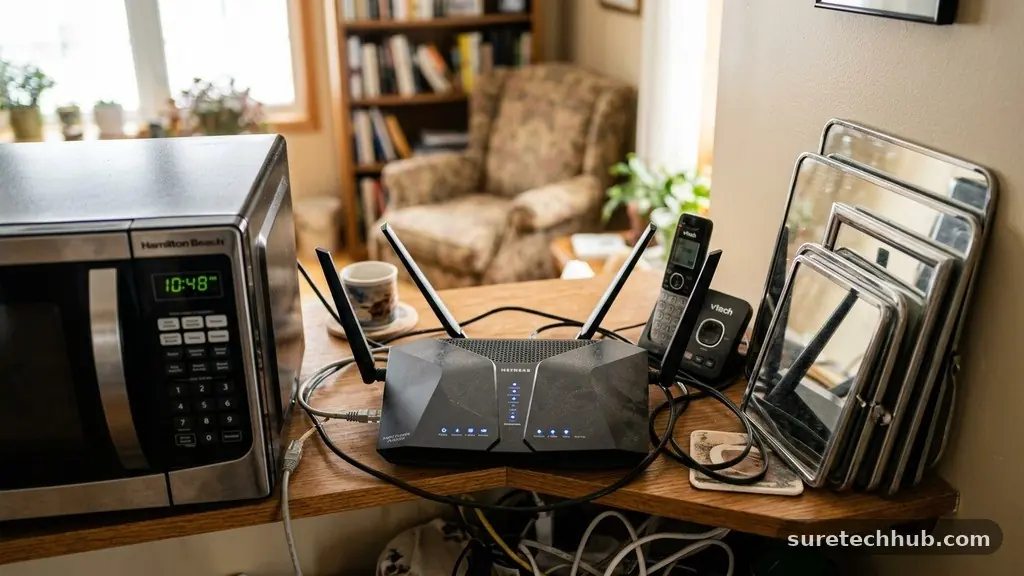
Metal objects are particularly effective at blocking or reflecting these signals. Large mirrors, filing cabinets, and even high-end kitchen appliances can create “dead zones” in your home.
To improve your signal strength, ensure the router is placed in a central, elevated location. Ideally, it should sit on an open shelf or a table away from other electronics that emit electromagnetic noise, such as microwaves or cordless phones.
You should also be aware of channel congestion, especially if you live in an apartment complex. Many routers default to the same broadcast channel, leading to a crowded “airspace” where your network competes with your neighbors’.
You can often log into your router’s administrative dashboard to manually select a less crowded channel. This simple adjustment can lead to an immediate improvement in speed and stability.
Troubleshooting Router Hardware Issues
When your internet stops working entirely, the router itself is often the first thing to check. A simple power cycle, often called a hard reset, resolves a surprisingly high number of common Wi-Fi problems and simple ways to fix them include this as a standard first step.
Unplug your router from the power outlet, wait at least 30 seconds, and then plug it back in. This allows the internal memory to clear and forces the device to re-establish a fresh handshake with your internet service provider.
Check the indicator lights on the front of the unit for clues about its status. A solid green light usually indicates a healthy connection, while a blinking amber or red light often signals a hardware error or a loss of service from your provider.
If you see persistent red lights despite a restart, the issue might be an outage in your neighborhood. You can verify this by checking your provider’s status page or calling their support line.
Overheating is another silent performance killer that many users overlook. Routers generate heat while processing data, and if the ventilation holes are blocked by dust or clutter, the device may throttle its performance to protect its components.
Regularly dusting your hardware and ensuring it has adequate airflow can prevent unexpected drops in connectivity. If your router feels hot to the touch, move it to a cooler, better-ventilated spot immediately.
Addressing Device-Specific Connectivity
Sometimes the problem isn’t the router, but a single device struggling to maintain its connection. If your phone or laptop fails to join the network while other devices work perfectly, the issue likely resides within that specific machine’s Wi-Fi settings. Start by toggling the Wi-Fi switch off and on again to force the device to scan for the network fresh.
If that fails, consider “forgetting” the network in your system settings and reconnecting as if it were a new connection. This clears out potentially corrupted credentials or outdated IP configurations that might be blocking access.
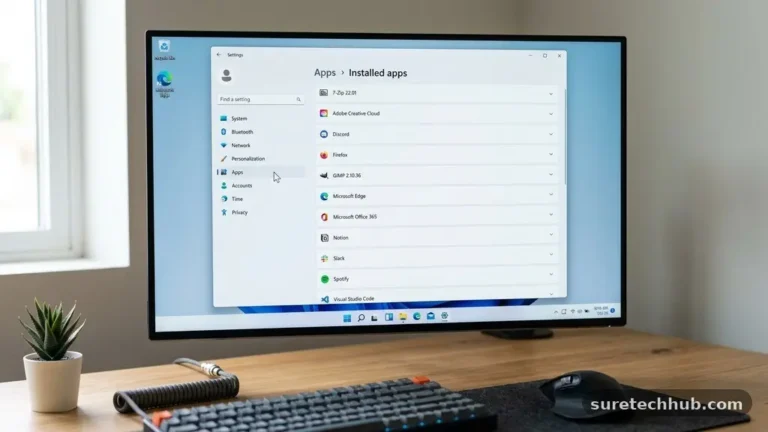
For Windows or macOS users, navigating to the network adapter settings can also reveal if the driver software needs an update. Keeping your operating system and network drivers current is vital for maintaining compatibility with modern security protocols.
If you are dealing with a phone that won’t connect, check if you have a VPN or a restrictive firewall app active. These tools can sometimes conflict with your home network’s security settings, preventing the device from obtaining a valid IP address. Disabling these temporarily will help you isolate whether they are the root of your connectivity struggle.
Managing Network Security and Firmware
Outdated firmware is a common source of intermittent drops and security vulnerabilities. Manufacturers release updates to fix bugs and improve performance, yet many users leave their routers running on factory software for years.
You can usually find the firmware update section within your router’s web interface or mobile app. Updating this software ensures your router can handle modern traffic loads and resolve known issues that cause random disconnects.
Security settings also play a role in how well your network performs. While you should never run an open network, using an outdated encryption standard like WEP can cause connection failures with newer devices.
Ensure your router is set to WPA3 or WPA2-AES for the best balance of security and compatibility. If you are unsure about your current settings, the Federal Communications Commission provides official resources on maintaining secure home networks.
Consider the following table to help you identify the most likely source of your connection issues based on the symptoms you are experiencing:
| Symptom | Likely Cause | Simple Fix |
|---|---|---|
| Slow speeds in one room | Physical Obstruction | Relocate router to a central, open area |
| Intermittent drops | Channel Congestion | Change wireless channel in settings |
| No internet on all devices | ISP or Modem Issue | Power cycle the modem and router |
| One device won’t connect | Device IP Conflict | Forget network and toggle Wi-Fi off/on |
Optimizing Your Home Network Layout
If you live in a larger home, a single router might simply lack the range to cover every room effectively. This is a common architectural problem that no amount of software tweaking can fully solve. You might notice that your signal is strong in the office but disappears entirely in the kitchen or bedroom.
For these situations, mesh Wi-Fi systems are the most effective solution. Unlike traditional range extenders, which often cut your bandwidth in half, mesh systems use multiple nodes that communicate with each other to create a single, unified network. This keeps your devices connected to the strongest signal as you move throughout your home.
If you aren’t ready to invest in a mesh system, consider these simple steps to help extend your reach:
- Position your router in the center of the home rather than near an exterior wall.
- Elevate the router on a shelf to avoid signal absorption by furniture.
- Avoid placing the router near thick stone or concrete walls.
- Ensure your router’s antennas, if external, are positioned vertically for the best coverage.
Frequently Asked Questions
Why does my Wi-Fi work on my phone but not on my laptop?
This usually indicates an issue with the laptop’s network adapter or driver. Try restarting the laptop or resetting the network stack in your system settings to clear any temporary conflicts.
How do I know if my router is outdated?
If your router is more than five years old, it likely lacks support for modern standards like Wi-Fi 6. If you frequently experience issues despite troubleshooting, upgrading to a newer model often provides a massive jump in stability.
Can a microwave interfere with my internet?
Yes, microwaves operate on the same 2.4GHz frequency as many Wi-Fi routers. If your connection drops whenever you use the microwave, your router is likely too close to the appliance.
What is the difference between 2.4GHz and 5GHz?
The 2.4GHz band has a longer range but is prone to interference, while the 5GHz band is much faster but has a shorter range. Most modern routers are dual-band, allowing you to use both for different needs.
Should I hide my Wi-Fi network name?
While hiding your SSID might seem like a security measure, it does not actually stop attackers and can cause connection issues for some devices. It is better to use a strong WPA3 password instead.
Final Thoughts on Connectivity
Resolving network issues is almost always about narrowing down the variables. By systematically checking your hardware, physical placement, and device settings, you can overcome common Wi-Fi Problems and Simple Ways to Fix Them without professional help. Start with the simplest solutions, like power cycling your equipment or moving your router to a more central location, before diving into more complex configurations.
Most users find that their connection stabilizes once they address these small environmental factors. If you continue to experience persistent issues, don’t hesitate to contact your service provider to ensure there isn’t a line fault outside your home. Stay patient, keep your firmware updated, and you will enjoy a much more reliable internet experience in your day-to-day life.