Laptop Battery Draining Fast? Causes and Practical Fixes
When your laptop battery starts losing power unexpectedly, it disrupts your workflow and forces you to hunt for an outlet constantly. Dealing with a laptop battery draining fast? Causes and practical fixes are often simpler than you might imagine, usually involving a mix of background software habits and hardware settings.
You don’t always need to replace the unit or visit a repair shop to restore your mobility. By identifying the primary culprits behind high energy consumption, you can extend your time away from the plug and improve your overall computing experience. This article walks you through the most effective ways to diagnose and resolve these power issues on your device.
Identifying Background Resource Hogs
The most common reason for a sudden drop in battery life is hidden software running in the background. Your CPU handles these tasks, and when it works overtime, the battery depletes rapidly. You can easily spot these offenders using built-in system tools.
On Windows, the Task Manager is your best friend for monitoring which applications are eating up your power. If you see a browser process or a background update utility consuming a high percentage of your CPU, that is your primary drain.
How to Check Resource Usage
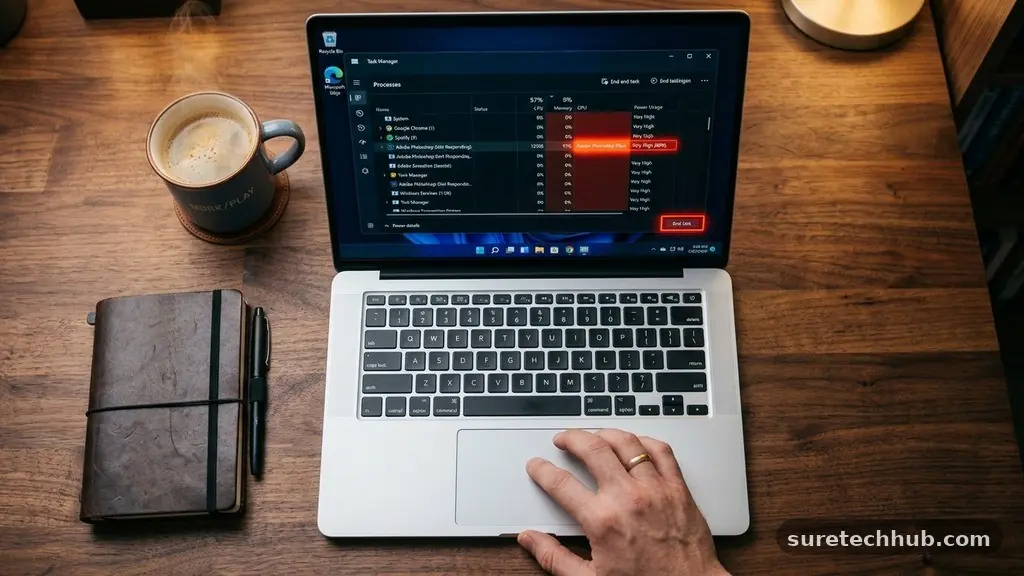
Open the Task Manager by pressing Ctrl + Shift + Esc. Look at the “CPU” and “Power Usage” columns to see which apps are currently active.
You might find that a cloud storage sync or an indexing service is working in the background without your knowledge. Simply ending these tasks can often stop the rapid drain immediately.
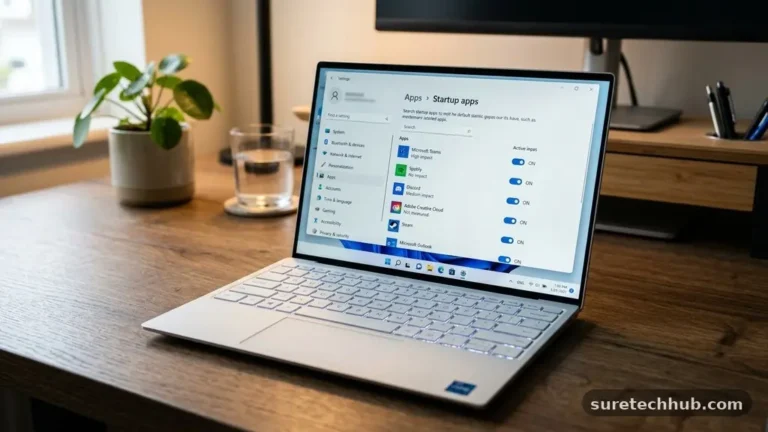
Another culprit is the collection of “Startup” apps that launch the moment you turn on your computer. Many of these programs are unnecessary for daily tasks but continue running in the background until manually closed.
Disabling them in the Startup tab of the Task Manager prevents them from drawing power during your entire session. This simple step often provides the most noticeable improvement in longevity.
Browser tabs are another silent killer of battery life. Modern web browsers are powerful, but they treat every open tab as an active process. If you have twenty tabs open, your CPU is working to refresh and render all of them simultaneously.
Closing unused tabs or using a “tab suspender” extension can significantly reduce the load on your system. It’s a small change that keeps your device running cool and efficient.
Managing Display and Peripheral Power
The screen is typically the single largest consumer of power on any laptop. When your screen brightness is set to its maximum level, it demands a significant amount of electrical current from the battery.
Lowering the brightness to a comfortable level is the fastest way to save energy. Most modern operating systems include an adaptive brightness feature that adjusts the screen intensity based on your ambient environment, which is highly effective for conserving charge.
Optimizing Screen and Hardware Settings
Beyond the display, external peripherals like USB drives, wireless mice, and high-end microphones pull power directly from your laptop. If you are working on a train or in a cafe, unplugging any unnecessary devices will help keep your battery alive longer.
Every piece of hardware connected to your port requires a small amount of electricity to remain active. Reducing these physical connections is an easy way to extend your usage time.
Bluetooth and Wi-Fi radios also consume power, though often less than the screen. If you are working on a local document and do not need internet access, toggling “Airplane Mode” can provide a noticeable boost to your battery duration.
This turns off the radios that constantly scan for signals, reducing the background work your computer has to do. It is a quick toggle in the system tray that saves energy without sacrificing performance for offline tasks.
Keyboard backlighting is another feature that, while useful in the dark, is a luxury that costs battery life. If you are in a well-lit room, turn the backlight off entirely or dim it to the lowest setting.
Many laptops allow you to toggle this with a dedicated function key. These small adjustments cumulatively add up to a much more reliable experience during a long day of travel.
Evaluating Battery Health and Aging
All lithium-ion batteries degrade over time, which is an unavoidable chemical reality. If your laptop is several years old, the maximum capacity of the battery has likely shrunk compared to when it was new.
It is important to know if your current drain is due to software issues or simply a battery that has reached the end of its functional lifespan. You can perform a health check to see how much “full charge capacity” your battery still holds.
Comparing Battery Performance
Windows users can generate a battery report by opening the Command Prompt and typing “powercfg /batteryreport”. This creates an HTML file that details your current capacity versus the design capacity.
If the current capacity is significantly lower than the original design capacity, you are dealing with natural degradation. In this case, no amount of software optimization will restore it to its original performance levels.
| Metric | What It Means | Impact on Battery |
|---|---|---|
| Design Capacity | Original max charge | Baseline for performance |
| Full Charge Capacity | Current max charge | Indicates battery age |
| Cycle Count | Total charge cycles | Higher means more wear |
If your battery report shows a cycle count in the hundreds or thousands, it is time to consider a replacement. Most manufacturers consider a battery to be reaching the end of its life once it falls below 80% of its original capacity.
While this isn’t an emergency, it does mean you will need to rely on your power adapter more frequently. Replacing the internal battery is often a cost-effective way to make an older laptop feel like new again.
You can find more detailed information on managing these cycles through official support resources, such as the Microsoft official guide on battery care. Understanding the difference between a software-induced drain and physical degradation is key. Once you distinguish between the two, you can stop fighting a losing battle against a worn-out component and simply upgrade the hardware instead.
Applying Energy-Efficient Operating Modes
Modern operating systems are designed with sophisticated power plans that balance speed and efficiency. If you find your laptop battery draining fast, the first thing to check is your current power mode.
Most laptops have a “Balanced” mode, but there is also a “Power Saver” or “Best Power Efficiency” mode available. Switching to this mode limits the maximum performance of the CPU and reduces background activity to save power.
The “Best Power Efficiency” setting is particularly useful when you are attending a long meeting or working away from a desk. It forces the system to prioritize battery life over raw performance by throttling non-essential background processes.
While you might notice a slight dip in responsiveness, the trade-off is often an extra hour or more of unplugged time. This is a simple toggle that requires no extra software or advanced technical knowledge.
Another often overlooked setting is the “Sleep” versus “Hibernate” function. Sleep mode keeps your RAM powered, which continues to drain the battery even when the lid is closed.
Hibernate, on the other hand, writes your open state to the hard drive and cuts power completely. If you aren’t going to use your computer for a few hours, choosing “Hibernate” is a much better way to preserve your charge for when you really need it.
- Lower screen brightness to 50% or less.
- Disable non-essential startup programs.
- Use “Hibernate” instead of “Sleep” for long breaks.
- Switch to “Power Saver” mode during light usage.
- Disconnect external USB drives and peripherals.
Thermal Management and Airflow
Heat is the enemy of both your laptop’s performance and its battery lifespan. When the internal components get too hot, the cooling fans ramp up to high speeds, which consumes a massive amount of power.
Furthermore, lithium-ion batteries are chemically sensitive to high temperatures, which can lead to accelerated degradation. Keeping your device cool is essential for maintaining both short-term charge and long-term battery health.
Always ensure that your laptop is on a hard, flat surface like a desk. Using a laptop on a bed, couch, or carpet blocks the intake vents on the bottom, forcing the fans to work harder and the battery to heat up.
If you must work in bed, consider using a lap desk or a hard tray to maintain proper airflow. Proper ventilation keeps the CPU cooler, which in turn reduces the demand on the power management system.
If you have owned your laptop for more than a year, dust buildup inside the vents can be a major issue. You can use a can of compressed air to gently blow out the dust from the vents, which often helps the fans run more efficiently.
When the fans aren’t constantly spinning at maximum speed, your battery will naturally last longer. Keeping your machine clean is an easy, proactive step to avoid power-related frustrations.
Frequently Asked Questions
Why is my laptop battery dying so fast all of a sudden?
A sudden change is usually caused by a new application running in the background or a recent software update that is indexing files. Check your Task Manager for any process using more than 10-15% of your CPU consistently. It could also be a browser extension that is causing a memory leak, forcing your computer to work harder than necessary.
How do I stop my laptop battery from draining so fast?
Start by reducing your screen brightness and closing unused applications. Switch your system’s power plan to “Power Saver” or “Best Power Efficiency” mode. If the issue persists, check your battery health report to see if the hardware itself is degrading, and disable unnecessary startup items to keep the CPU load low.
What kills a laptop battery the fastest?
High screen brightness, heavy multitasking with many browser tabs, and gaming are the primary energy consumers. Additionally, exposing your laptop to extreme heat and leaving it in a “Sleep” state for days at a time can significantly shorten the overall lifespan of the battery cells.
Is a 1% battery drain in 3 minutes normal?
This depends on your current activity. If you are gaming or editing video, a 1% drop every few minutes is expected. However, if you are simply reading a document or browsing the web with low brightness, a 1% drain every 3 minutes is unusually high and suggests a background process or a degraded battery.
Restoring Reliable Power Performance
When you find yourself dealing with a laptop battery draining fast, the causes and practical fixes described above provide a clear path to resolution. Most of the time, the issue is not a broken machine but rather a collection of small, manageable settings that have drifted out of optimization. By monitoring your background processes, adjusting your screen brightness, and ensuring your device stays cool, you can significantly improve your daily experience.
Take the time to run a battery report to understand your hardware’s true condition, and don’t hesitate to switch to power-saving modes when you are away from a charger. These habits ensure your computer remains a mobile, reliable tool rather than one tethered to the wall.