What to Check Before Installing New Software on Your PC
Knowing what to check before installing new software on your PC is the difference between a high-performing machine and a cluttered, sluggish system. When you download and run executable files, you are granting that code access to your operating system, which carries inherent risks if you aren’t careful.
By taking a few moments to verify the source, system requirements, and security permissions before you click install, you protect your data and maintain your machine’s stability. This process ensures that every program you add actually improves your workflow rather than introducing unwanted bloatware or hidden threats.
Verifying Source Authenticity
The most critical step in maintaining a healthy computer is ensuring that your software originates from a trustworthy source. Malicious actors often bundle malware or spyware into popular programs and distribute them through unofficial websites or third-party download portals.
Always prioritize downloading directly from the developer’s official website or a verified store like the Microsoft Store. If a site offers an “exclusive” version of a common tool that is otherwise free, treat it with extreme suspicion.
Identifying Official Domains

Check the URL in your browser’s address bar carefully before you initiate any download. Attackers frequently use “typosquatting,” where they register a domain that looks nearly identical to a legitimate one, such as replacing an “m” with “rn” or using a different top-level domain like .net instead of .com. Look for the padlock icon in the address bar to confirm the site uses HTTPS, which ensures your connection to the server is encrypted. While this doesn’t guarantee the software itself is safe, it indicates that the site at least follows basic security standards for data transmission.
Using Trusted Repositories
If you are worried about the legitimacy of a download site, consider using well-known package managers or repositories. Services like Ninite allow you to select multiple programs from a list of verified, official installers and download them in one batch. This prevents you from accidentally clicking on misleading advertisements that look like “Download” buttons on shady hosting sites. These platforms act as a buffer, ensuring you get the clean, original files directly from the manufacturer’s servers without any extra bundled junk.
Matching System Requirements
Before you commit to a large download, you must verify that your hardware can handle the new load. Every piece of software lists minimum and recommended specifications, which are not just suggestions.
If your machine falls below the minimum threshold, you will likely experience crashes, extreme lag, or failure to launch entirely. Always check your current hardware profile against these metrics to avoid wasting time and bandwidth on programs that simply won’t run well.
Checking CPU and RAM Capacity
Your processor and memory are the two most common bottlenecks when running modern applications. If you are installing a resource-heavy program, such as video editing software or a complex game, check if your RAM meets the recommended amount. Running a program with less than the required memory forces your PC to use the hard drive as a temporary memory swap, which drastically slows down your entire system. You can check your specs by right-clicking on the Start button and selecting System in Windows.
Storage Space and Drive Type
Modern software often requires significantly more space than the installer file size suggests. While an installer might only be 200MB, the unpacked program could easily balloon to several gigabytes. Furthermore, check if your storage drive is an HDD or an SSD. Many modern games and professional tools are optimized specifically for the high read/write speeds of SSDs; installing them on an older, slower mechanical hard drive can lead to long load times and stuttering performance.
| Component | Basic Requirement | Performance Recommendation |
|---|---|---|
| RAM | 8GB | 16GB or higher |
| Storage | HDD (Standard) | NVMe SSD |
| Processor | Quad-core | Hexa-core or higher |
| Graphics | Integrated | Dedicated GPU |
Managing Permissions and Bundled Offers
Many free software installers include “optional” offers that you might accidentally agree to if you click through the setup screens too quickly. These offers often include browser toolbars, search engine modifiers, or additional background utilities you never intended to install.
Always choose the “Custom” or “Advanced” installation path during the setup wizard rather than the “Express” or “Recommended” path. This allows you to uncheck boxes for unwanted add-ons that can compromise your browser’s performance or your system’s privacy.
Understanding Administrative Access
When you install a program, the installer will often ask for administrative privileges to write files to system directories like Program Files. Only grant these permissions if you fully trust the developer. Once a program has admin rights, it can potentially monitor your keystrokes, access your webcam, or modify system settings without further prompting. Be wary of simple utilities, such as a basic calculator or wallpaper changer, that demand full administrative control over your machine.
Privacy and Data Collection

Review the privacy policy or the initial setup screens to see what data the software collects. Many programs now include telemetry features that send usage statistics back to the developer. While some of this is used for bug fixing, some companies track your habits for marketing purposes. You can often toggle these settings off during the initial configuration. If a program doesn’t provide a way to opt out of data collection, consider if the utility is worth the sacrifice of your personal information.
Security Scanning and Backup Protocols
Even if you believe a file is legitimate, it is a best practice to perform a quick security scan before running the installer. Your Windows Defender or any third-party antivirus software should automatically scan files upon download, but you can right-click the file and select “Scan with…” to be certain.
This extra step takes only a few seconds and provides a massive safety net against accidentally running a compromised file. If your security software flags a file, do not override the warning just because you want to use the program.
Creating a Restore Point
Before installing complex software or system drivers, create a manual System Restore point. This creates a snapshot of your current operating system configuration, allowing you to revert your PC to a stable state if the new program causes issues. You can find this tool by searching for “Create a restore point” in the Windows search bar. It is a proactive step that protects you from software conflicts that might otherwise require a complete system wipe to fix.
Ensuring Current Updates
Before you install a new program, ensure your Windows operating system is fully up to date. Many modern applications rely on the latest frameworks, such as .NET or specific C++ redistributable packages, to function correctly. By keeping your system updated, you ensure that the necessary foundation is already in place. You can learn more about how to manage these updates through the official Microsoft Support portal, which provides documentation on maintaining a stable environment.
Optimizing Startup and Background Processes
Many programs are designed to launch automatically when you turn on your PC, which can significantly increase your boot time. When installing new software, pay close attention to the setup options regarding “Launch on Startup” or “Run in background.”
If you don’t need the application to be active the moment you sign into Windows, disable this feature. Too many background tasks competing for CPU cycles will make even a powerful computer feel sluggish over time.
Identifying Hidden Background Services
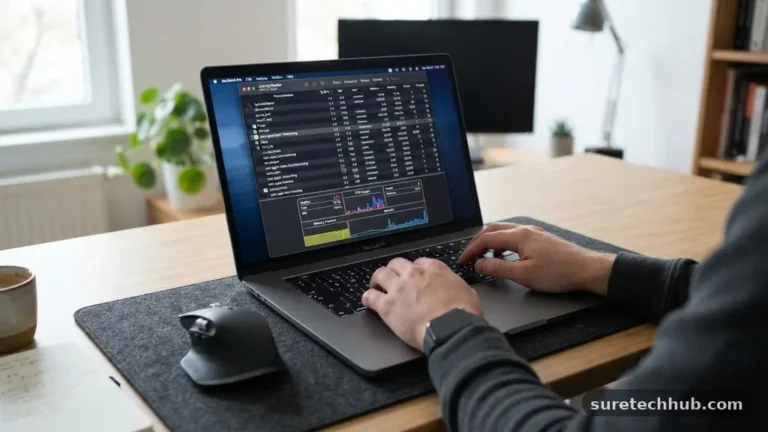
Some software installs background services that run even when the main program is closed. These services are often used for automatic updates or “quick launch” functionality, but they consume memory and processor resources constantly. Use the Task Manager by pressing Ctrl + Shift + Esc and navigate to the Startup tab to see what is currently configured to run automatically. Disable anything you don’t explicitly need to save resources for the applications you actually use daily.
The Impact of Software Bloat
Installing too many utilities that perform similar functions often leads to “software bloat.” For example, having three different media players or two separate cloud storage clients running simultaneously can cause file association conflicts. Each program adds its own set of context menu items, background processes, and temporary files to your system. Be selective about what you keep on your machine and uninstall applications you no longer use to reclaim your system’s performance.
Frequently Asked Questions
How can I tell if a software installer is safe?
Always check the digital signature of the installer by right-clicking the file, selecting Properties, and looking at the Digital Signatures tab. If the signature is missing or from an unknown entity, it is safer to avoid installing the file.
Does installing new software slow down my PC?
It depends on the software and how it is configured. Programs that run background processes or launch at startup will consume resources, while simple tools that only run when opened generally have no impact on your system’s performance when they aren’t in use.
Should I remove old software before installing a new version?
Yes, it is generally best practice to uninstall the previous version of a program before installing a new one. This prevents file conflicts and ensures that all settings are cleanly migrated or refreshed.
What should I do if my antivirus blocks a file I know is safe?
If you are certain the file is safe, investigate the reason for the block. Sometimes antivirus software flags “false positives” on new or niche software; however, you should only proceed if you have verified the download link is the official developer’s site.
Is it necessary to restart my computer after installing software?
Most modern software does not require a restart, but system-level tools, drivers, and major updates often do. A restart ensures that all system files are correctly registered and that any background services are properly initialized.
Final Thoughts on Software Management
Taking the time to check before installing new software on your PC is a habit that pays off in long-term system stability and security. By verifying the source, checking requirements, and being mindful of permissions, you prevent the accumulation of junk files and potential vulnerabilities. These small, deliberate actions ensure that your machine remains a tool for productivity rather than a source of frustration.
When you are selective about what enters your system, you maintain the performance and longevity of your hardware for years to come. Start by reviewing your current setup and removing any applications you no longer need, then approach every new installation with a critical eye to keep your digital environment clean and efficient.