How to Check Whether Your Computer Has Enough RAM
Learning the process of checking whether your computer has enough RAM is a vital skill for anyone looking to maintain a smooth digital experience. Whether you are noticing sluggish performance during daily tasks or planning to install demanding software, understanding your current memory capacity is the first step toward optimization.
By identifying how much memory your system currently utilizes, you can make informed decisions about potential upgrades or software adjustments. This guide provides the tools to accurately assess your hardware’s capabilities and determine if your machine is truly keeping pace with your needs.
Identifying Your Current Memory Capacity

To start checking whether your computer has enough RAM, you first need to know how much is physically installed in your machine. On a Windows system, the quickest way to see this information is through the Task Manager.
You can open this utility by pressing Ctrl + Shift + Esc on your keyboard. Once the window appears, navigate to the Performance tab and select the Memory option from the sidebar.
This view displays your total installed capacity, often measured in gigabytes (GB), and shows the speed at which your memory operates. You will also see how many slots are currently in use, which is critical if you are considering adding more sticks later.
If you are using a Mac, simply click the Apple icon in the top left corner and select About This Mac. A window will appear detailing your hardware specifications, including the exact amount of memory currently recognized by your macOS.
Interpreting Real-Time Memory Usage
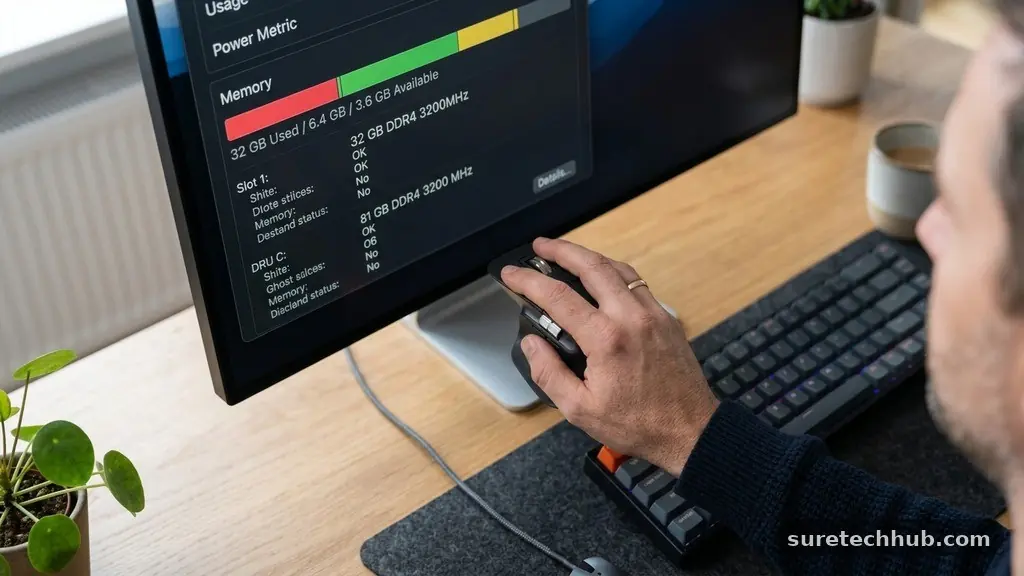
Knowing the total capacity is only half the battle; understanding how your applications consume that space is equally important. When you keep the Task Manager open while running your typical workflow, you can see exactly how much of your memory is currently being committed.
If your usage percentage consistently sits above 80% while you perform standard tasks, your system is likely experiencing a bottleneck. This is where the operating system begins to swap data to your storage drive, which is significantly slower than physical memory.
Pay attention to the Memory section in Task Manager to see which specific processes are demanding the most resources. You might find that a web browser with dozens of tabs open or a background update service is consuming a disproportionate amount of your available capacity.
Closing these high-demand applications often provides an immediate performance boost without requiring new hardware. If your computer remains sluggish even after closing unnecessary programs, it is a clear indicator that your current amount of memory is insufficient for your typical workload.
RAM Requirements by User Category
The amount of memory you actually need depends entirely on how you use your computer. For basic web browsing and word processing, 8GB is generally considered the baseline for modern operating systems.
However, users who engage in multitasking, photo editing, or professional creative work will find that 16GB is a much more comfortable standard. Those who perform heavy video rendering, run virtual machines, or play modern high-fidelity games often require 32GB or more to avoid system slowdowns.
The following table provides a general recommendation for memory based on typical user profiles to help you gauge your requirements.
| User Profile | Recommended Capacity | Typical Activities |
|---|---|---|
| Basic User | 8 GB | Web browsing, email, streaming |
| Power User | 16 GB | Multitasking, light photo editing |
| Professional | 32 GB | Video editing, 3D rendering, coding |
| Enthusiast | 64 GB+ | Advanced workstation tasks, VMs |
Recognizing Signs of Memory Exhaustion
Your computer usually provides several physical signals when it lacks sufficient memory. One of the most common symptoms is frequent system freezing or unresponsiveness when switching between open applications.
If you notice that your windows take a long time to redraw or that your mouse cursor hangs during simple clicks, your system is likely struggling to manage its active data. This behavior is often accompanied by aggressive disk activity, as the operating system tries to use your storage drive as a temporary overflow area.
Another clear indicator is the sudden crash of programs, particularly memory-intensive software like browsers or creative suites. When an application runs out of the space it needs to function, it will often shut down unexpectedly to prevent further system errors.
If you find yourself restarting your computer daily just to “clear out” the sluggishness, you are dealing with a classic case of insufficient memory. You can read more about how your system manages these resources through the official Microsoft documentation on memory management to understand the technical side of these performance drops.
Evaluating Hardware Compatibility
Before you commit to purchasing more memory, you must determine if your computer can actually be upgraded. Many modern laptops, especially ultra-thin models, have their memory soldered directly onto the motherboard, meaning they cannot be expanded.
You can check your manufacturer’s support page by searching for your specific model number to verify if the slots are accessible. If your system allows for an upgrade, you must match the type of memory required, such as DDR4 or DDR5, and ensure it matches the frequency your motherboard supports.
It is also important to consider the total capacity your motherboard can handle. Even if you have free slots, your system might have a hard limit on how much total memory it can address.
Installing more than the supported limit can lead to boot failures or system instability, so always check the technical specifications for your motherboard or laptop model. If you are unsure, using system scanning tools provided by reputable memory manufacturers can help you identify exactly which modules are compatible with your specific hardware configuration.
Frequently Asked Questions
Is 16GB of RAM enough for most users in 2026?
For the vast majority of users, 16GB is the “sweet spot” that provides excellent performance for multitasking, gaming, and general productivity. Unless you are specifically performing high-end professional work, you will likely find that 16GB handles every task you throw at it with ease.
Why does my computer show less RAM than I installed?
It is normal for your operating system to reserve a small portion of your total capacity for hardware tasks, such as integrated graphics. Additionally, if you are running a 32-bit version of an older operating system, it will be physically unable to address more than 4GB of memory.
Is it possible to have too much RAM?
Technically, you cannot have “too much” in terms of performance, but you can reach a point of diminishing returns. If you have 64GB of memory but your daily workflow only ever utilizes 12GB, the extra capacity will simply sit idle and will not contribute to faster processing speeds.
Does faster memory speed always mean a faster computer?
While faster frequency can improve performance in specific tasks like gaming or rendering, it is not as important as the total capacity. It is almost always better to have a larger amount of standard-speed memory than a smaller amount of ultra-fast memory.
Can I mix different brands of RAM?
While you can technically mix brands, it is highly recommended to use modules with identical specifications, including speed, voltage, and timings. Mixing different types often leads to system instability or forces all modules to run at the speed of the slowest stick.
Refining Your System Performance
Checking whether your computer has enough RAM is a straightforward process that grants you control over your machine’s performance. By regularly monitoring your system usage and understanding the signs of memory pressure, you can ensure that your computer remains a reliable tool for your daily tasks. If you find that your current setup is consistently hitting its limits, you are now equipped with the knowledge to either optimize your software environment or pursue a hardware upgrade with confidence.
Taking these small, deliberate steps helps maintain your system’s longevity and prevents the frustration of unexpected slowdowns. Should you decide that an upgrade is necessary, always verify your hardware’s specific compatibility before making a purchase. Keeping your computer properly configured ensures it continues to support your goals effectively for years to come.