How to Keep Your Smartphone Storage From Filling Up
Managing your digital space is one of the most common tech frustrations, but mastering the art of keeping your smartphone storage from filling up is entirely achievable with a few consistent habits. By understanding exactly how your device allocates its internal memory, you can prevent the dreaded “Storage Full” notification before it appears.
This article provides a clear roadmap for reclaiming your device’s capacity, ensuring you have enough room for the apps, photos, and files that actually matter to you. You will gain control over your digital footprint by learning how to optimize your settings and prune unnecessary data effectively.
Identifying the Biggest Storage Hogs

To start keeping your smartphone storage from filling up, you must first identify what is actually consuming your space. Most users assume that apps take up the most room, but high-resolution photos and videos are usually the primary culprits.
Modern smartphone cameras capture incredibly detailed images that can easily reach 5MB to 10MB per shot. If you record 4K video, a single minute of footage can consume hundreds of megabytes in mere seconds.
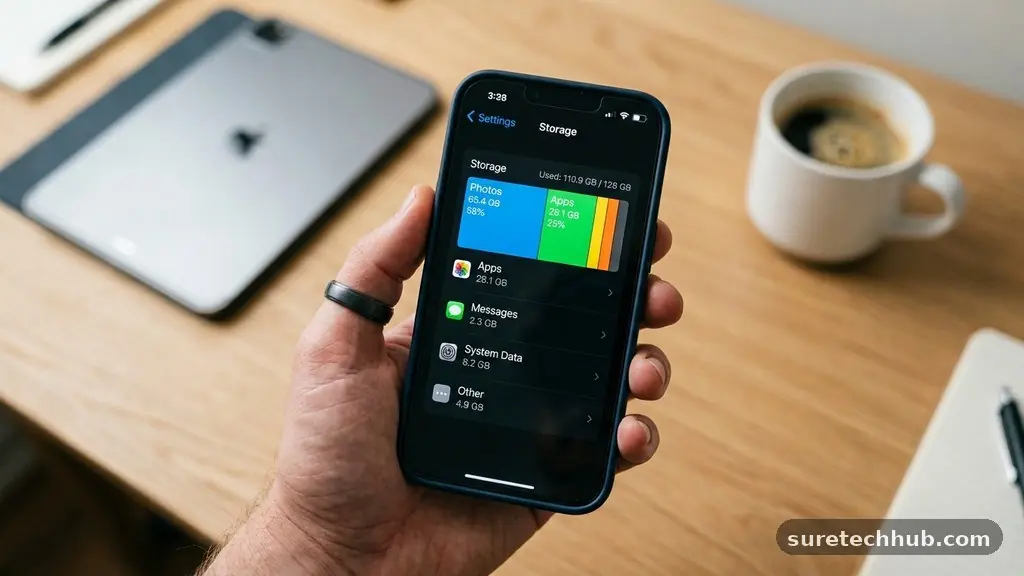
Check your device’s storage breakdown in the system settings to see the exact distribution. On an iPhone, navigate to General and then iPhone Storage; on Android, look for the Storage or Device Care section in your settings.
You will likely see a bar graph showing categories like Media, Apps, System, and Other. Focus your efforts on the categories with the largest colored bars, as these provide the most significant potential for recovery.
Don’t ignore the “Other” or “System Data” category if it appears disproportionately large. This section often contains cached files, temporary update files, and logs that the operating system hasn’t cleared yet.
While you cannot delete core system files, you can often trigger a refresh by restarting your device or clearing the cache of specific high-usage apps. Being proactive here prevents the accumulation of “digital junk” that slows down your phone‘s performance over time.
Optimizing Photo and Video Management
Your photo library is likely the largest collection of data on your phone. Many people keep thousands of blurry, accidental, or duplicate shots without realizing how much space they consume.
The most effective way to manage this is to use cloud-based storage services that automatically offload your full-resolution files to a server. Services like Google One allow you to store your media in the cloud while keeping only optimized, smaller versions on your local device.
Utilize the built-in “Optimize Storage” feature found in most modern operating systems. When enabled, this feature replaces full-resolution photos with space-saving versions, keeping the originals safely in the cloud until you tap to view them.
This is a set-it-and-forget-it solution that drastically reduces your local footprint. It effectively stops your gallery from acting as a bloated repository for every image you have ever taken.
If you prefer not to use cloud services, you must manually transfer your files to an external drive or computer regularly. Create a schedule, perhaps once every three months, to move your media off the device entirely.
Once the transfer is verified, delete the files from your phone to clear the space. This habit ensures your phone stays light and fast while keeping your memories organized and archived on a separate, safer medium.
Managing App Data and Cache
Apps are deceptively small when you first download them, but they grow significantly as you use them. Social media apps and browsers are notorious for storing vast amounts of data in their cache to make loading times faster.
While this cache improves your user experience, it eventually becomes a storage burden that you need to purge. You can manually clear the cache for individual apps through your device’s application manager or settings menu.
Review your app drawer regularly to identify software you haven’t used in months. If an app hasn’t been opened in 90 days, it is likely safe to delete it.
Many people keep “just in case” apps that they never actually touch, which continue to run background processes and consume storage. Removing these unused applications is the fastest way to gain gigabytes of space in a single afternoon.
Consider using “Lite” or web-based versions of your most popular apps if you are constantly running out of room. Many developers create stripped-down versions of their software that provide the core functionality without the heavy graphical assets and tracking data.
These versions are specifically designed for users with limited storage capacity. Transitioning to these lightweight alternatives can keep your phone running smoothly without sacrificing your ability to stay connected.
Cleaning Out Downloads and Temporary Files
The downloads folder is a graveyard for forgotten documents, PDFs, and installer files. We often download items to read or use once, only to let them sit in the internal storage indefinitely.
Make it a monthly ritual to open your file manager and sort your downloads by size. You will be surprised by how many large, obsolete files you can safely remove.
Pay attention to your messaging apps, as they are often massive silent data consumers. When you send or receive videos and high-res images in chats, those files are saved locally by default.
Check the settings within your messaging apps to disable “Auto-Download” for media. This ensures that you only save the files you actually want to keep, rather than cluttering your storage with every meme or video sent to you.
| File Type | Impact on Storage | Recommended Action |
|---|---|---|
| RAW Photos/4K Video | Extremely High | Offload to Cloud/PC |
| App Cache | Moderate | Clear periodically |
| Unused Apps | Low to High | Uninstall |
| PDFs/Documents | Low | Delete or Archive |
Leveraging Built-in System Tools
Modern smartphones come with powerful, built-in maintenance tools designed to keep your storage healthy. Android devices feature “Files by Google,” which actively suggests files to delete, such as blurry photos, large videos, and junk files. iOS includes “Recommendations” in the storage menu that can automatically offload unused apps or clear out old message attachments. Ignoring these prompts is a missed opportunity to keep your phone lean with minimal effort.
Automated backups are another essential component of storage management. By ensuring your phone is backing up to a service like iCloud or Google Drive, you gain the confidence to delete files from your device.
Without a reliable backup, the fear of losing data often prevents people from performing necessary cleanups. Confirm your backup status in your account settings before you begin deleting large volumes of data.
Check for “ghost” files left behind by uninstalled apps. Sometimes, when you remove an application, it leaves behind folders or data fragments that are no longer accessible through a standard interface.
Using a reputable file management app can help you find these hidden directories and remove them manually. This deep-cleaning process is often the final step needed to reclaim those last few gigabytes of stubborn, hidden space.
Developing Sustainable Digital Habits
The secret to keeping your smartphone storage from filling up is consistency rather than occasional panic-cleaning. Adopt a “one-in, one-out” policy for new apps, where you remove an old one whenever you download a new one.
This simple rule prevents the slow, creeping accumulation of software that eventually leads to a full device. It forces you to evaluate the value of every app on your home screen.
Be mindful of how you consume media. If you are a heavy user of streaming services like Netflix or Spotify, avoid downloading massive libraries for offline use unless you are currently traveling.
Streaming content is temporary; it doesn’t take up permanent space on your drive. If you do download content for a trip, make sure to delete those downloads immediately once you return home.
Finally, treat your phone storage like a physical room in your house. If you don’t let trash pile up on your desk, you shouldn’t let it pile up on your device.
Take five minutes every Sunday to look through your recent photos and delete the duplicates. These small, incremental actions prevent the buildup of clutter and save you from the stress of a non-responsive, full device.
Frequently Asked Questions
Why is my storage full even after I delete photos?
Often, deleted items are moved to a “Recently Deleted” folder where they remain for 30 days before being permanently erased. You must empty this trash folder manually to reclaim the space immediately. Additionally, app caches may continue to expand in the background, consuming the space you just opened up.
What is the most effective way to clear space without losing data?
The most effective method is offloading your data to a cloud service or an external hard drive. By syncing your photos and documents to a secure backup location, you can safely remove the local copies from your phone. This approach ensures your data is preserved while freeing up your device’s internal memory.
Do I really need to clear my app cache often?
You only need to clear the cache if you are running low on storage or if an app is behaving strangely. Clearing the cache occasionally helps remove temporary files that are no longer needed, but it shouldn’t be a daily task. Focus on clearing the cache of your largest, most frequently used social media and browser apps.
Will factory resetting my phone fix storage issues?
A factory reset will certainly clear all storage, but it is a nuclear option that should only be used as a last resort. It wipes all your personal data, settings, and apps, requiring you to restore everything from a backup. Only perform a reset if you have tried all other cleaning methods and the storage issues persist due to a system error.
Does streaming music or video take up storage space?
Streaming content generally does not take up permanent storage space, though apps may temporarily cache small segments of the stream. If you choose the “Download” or “Make Available Offline” option in an app, that content will take up significant storage. Always check your downloaded content list to ensure you aren’t hoarding files you no longer need.
Maintaining Your Digital Space
Keeping your smartphone storage from filling up is ultimately about mindfulness and regular maintenance. By identifying your largest data categories, utilizing cloud backups, and pruning unused apps, you can ensure your device remains fast and functional for years. You don’t need to be a technical expert to manage your digital environment; you just need to develop a routine that prevents clutter from accumulating.
Start by checking your storage settings today and identifying the top three contributors to your current usage. Once you address those, implement the small habits mentioned above to keep your device clean.
If you have any specific tips that have worked for you, or if you found this overview helpful, please feel free to share your experiences. Taking these proactive steps will save you time and frustration in the long run.