Windows Update Problems: Common Causes and Solutions
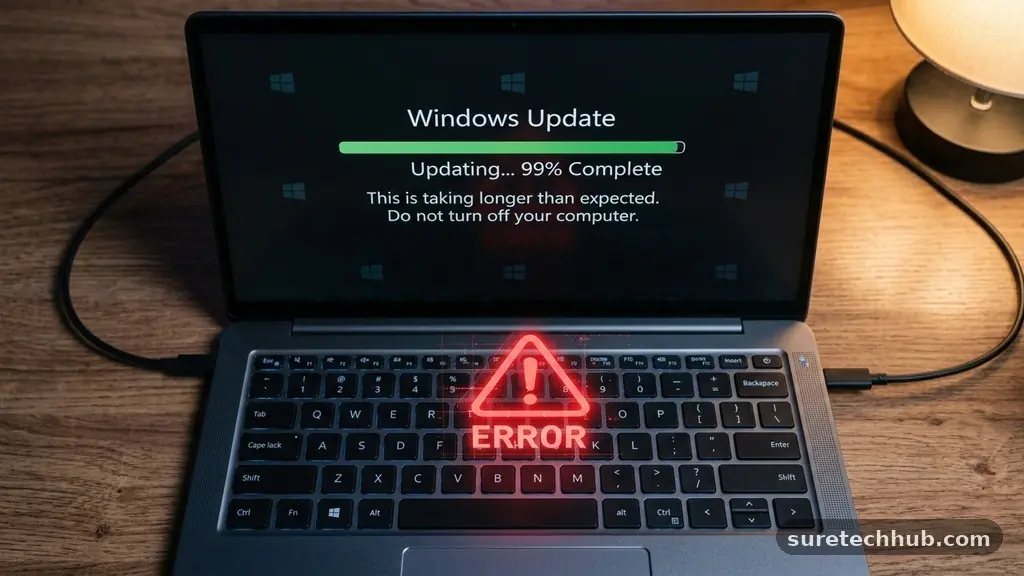
Dealing with Windows Update problems can be a source of significant frustration for any computer user. Whether you are facing a stuck progress bar, recurring error codes, or a system that refuses to restart, these hurdles often stem from simple connectivity or software conflicts. You can typically resolve most of these issues by clearing temporary cache files or resetting the background services that manage your system’s software delivery.
This article provides a clear path to troubleshooting these disruptions, ensuring your machine stays secure and functional without requiring a deep technical background. Understanding the root cause of these interruptions is the first step toward getting your device back on track.
The Primary Causes of Update Failures
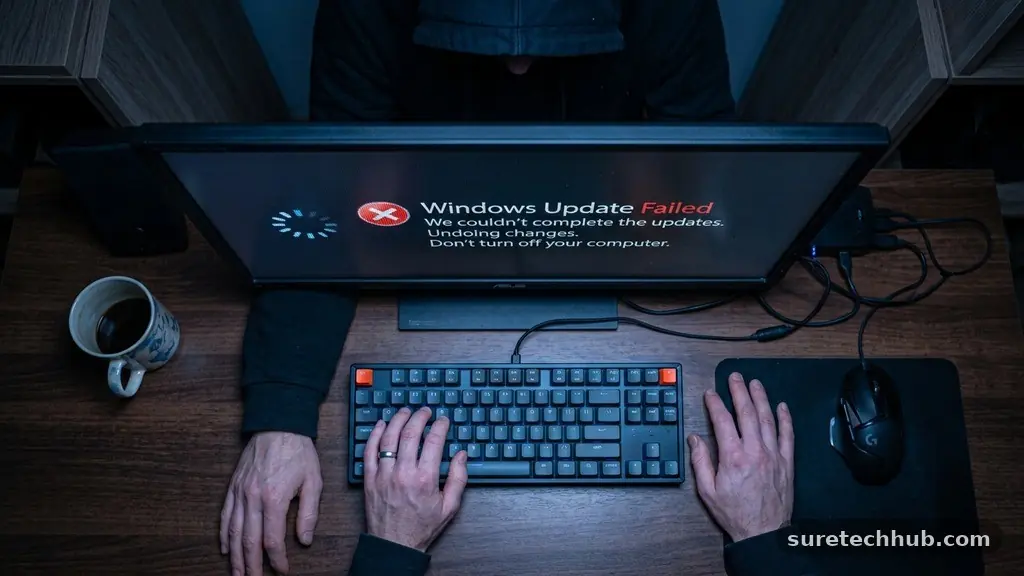
Most Windows Update problems originate from a few predictable sources that interrupt the communication between your machine and Microsoft’s servers. The most common culprit is a corrupted download cache, which occurs when a previous attempt to pull down files is interrupted, leaving behind partial or broken data.
When the system tries to verify these files during the next attempt, it hits a roadblock and stops the entire process. Another frequent issue involves third-party security software that might misidentify update components as suspicious activity.
Network instability also plays a massive role in why these processes fail. If your connection drops for even a split second during a large file transfer, the integrity of the downloaded package is often compromised. Furthermore, insufficient disk space is a silent killer of updates.
Windows requires a specific amount of free storage to unpack and stage new files before they are applied to the core system. If your drive is nearly full, the installation will simply abort, often without providing a clear explanation of why the failure occurred.
Using the Built-in Diagnostics
If you are looking for an immediate fix, the Windows Update troubleshooter is your first point of call. This tool is designed to automatically detect and repair common configuration errors that prevent your machine from communicating correctly. To access this, you should select Start, then navigate to the Settings menu.
Once inside Settings, look for the System tab or the Update & Security section depending on your specific version. From there, you can locate the Troubleshoot menu to find the dedicated tool.
When you run the troubleshooter, it performs a series of background checks that reset the Windows Update components. It will stop the Cryptographic Services, clear the SoftwareDistribution folder, and restart the necessary background processes. This effectively wipes the slate clean, allowing your machine to request a fresh set of files from the server.
While it may take a few minutes to complete, it often resolves the most persistent error codes without requiring manual intervention. You can visit the official Microsoft support page to see a full list of known error codes and their specific meanings.
Managing Disk Space and Storage
Updates are becoming increasingly large, requiring a healthy amount of headroom on your main partition. If you find that your system consistently fails at the final stage of installation, check your available storage capacity.
A good rule of thumb is to maintain at least 20GB of free space on your system drive. If you are hovering below this, the update process will likely fail because it lacks the room to create temporary installation backups.
You can use the built-in Disk Cleanup utility to reclaim space quickly. Right-click your C: drive in File Explorer, select Properties, and then click Disk Cleanup to identify junk files. Be sure to select the “Clean up system files” option, as this will allow you to delete old update logs and previous Windows installations that are no longer needed.
This action often clears out the very files that are causing your current Windows Update problems. If you still have low space, consider moving large media files or documents to an external drive or cloud storage.
Addressing Network and Connectivity Issues
Sometimes, your internet connection is the barrier preventing a successful update. Even if your browser works, your system might be struggling to maintain a stable connection to the Microsoft delivery servers.
Try switching from a wireless connection to a wired Ethernet cable if possible. A wired connection is inherently more stable and less prone to the packet loss that causes update downloads to corrupt.
If you are using a VPN or a proxy server, disable these before attempting to check for updates. These services often route traffic in a way that the update server does not recognize, leading to connection timeouts. You should also check if your network settings are set to “Metered.”
If a connection is marked as metered, Windows will intentionally block large background downloads to save you data costs. Adjusting these settings in the Network & Internet menu can often flip the switch and allow the process to move forward immediately.
Manual Reset of Update Components
When automated tools fail, a manual reset is the most effective way to clear out persistent issues. This involves stopping the services that manage the update process and deleting the local cache files manually. You will need to open the Command Prompt as an administrator to perform these tasks effectively.
Start by entering the command “net stop wuauserv” to halt the Windows Update service. Once stopped, you can navigate to the C:\Windows\SoftwareDistribution folder and delete its contents.
This folder acts as the repository for all downloaded update files. By deleting these, you force the system to ignore any corrupted data it might have stored previously. After clearing the folder, restart the services using the “net start wuauserv” command.
Your computer will then treat the next check for updates as a completely new request. This process is highly effective for solving recurring Windows Update problems that refuse to go away after multiple restart attempts.
Comparison of Troubleshooting Methods
Not every problem requires the same level of intervention. The table below outlines which method to use based on the specific behavior your system is exhibiting during an update cycle.
| Symptom | Recommended Action | Difficulty Level |
|---|---|---|
| Generic Error Code | Run the built-in troubleshooter | Easy |
| Stuck at 0% or 99% | Clear SoftwareDistribution folder | Advanced |
| Insufficient Space Error | Disk Cleanup utility | Easy |
| Connection Timeouts | Disable VPN/Switch to Ethernet | Medium |
Each of these steps addresses a different layer of the operating system. By following them in order of difficulty, you save time while systematically ruling out potential causes.
Frequently Asked Questions
Why does my computer keep failing to update?
Failure usually points to a corrupted download or a lack of disk space. When the system cannot find enough room to unpack files, it simply stops the process. Clearing your temporary folders and ensuring you have enough storage usually fixes this.
Is the newest Windows Update causing problems for everyone?
Not necessarily, but new updates can sometimes conflict with specific hardware drivers. If a massive amount of users report issues, it is often a known bug that Microsoft will patch shortly. Checking the official support forums can help you determine if you should wait for a fix.
What should I do if the troubleshooter does not work?
If the automated tool fails, you should try running the System File Checker (SFC). Open the Command Prompt as an administrator and type “sfc /scannow” to repair damaged system files. This often fixes deep-seated issues that prevent updates from running.
Why do some people refuse to install updates?
Some users fear that updates will introduce new bugs or change their preferred interface settings. While updates can occasionally cause temporary issues, they are vital for security and performance. Keeping your system current is the best way to protect your data from emerging threats.
How do I know if an update is genuinely stuck?
A legitimate update can take a long time, but it should show some activity. If your progress bar hasn’t moved for more than two hours and your hard drive light is inactive, it is likely frozen. In this case, restarting your machine and checking the logs is the best course of action.
Conclusion
Resolving Windows Update problems does not have to be an overwhelming experience. By systematically addressing storage, network, and service-level configurations, you can restore your system’s ability to download and install patches efficiently. Most of these hurdles are temporary and respond well to the basic troubleshooting steps outlined above.
If you find that your machine is still struggling after attempting these fixes, consider checking your hardware drivers or performing a clean boot to rule out software conflicts. Keeping your operating system current is essential for maintaining both security and performance over time. If you continue to face persistent issues, don’t hesitate to reach out to official support channels for further guidance on your specific configuration.