Windows 11 Settings You Should Change for Better Performance
Optimizing your PC requires careful adjustments to the default configuration, as there are many Windows 11 settings you should change for better performance. Out of the box, the operating system prioritizes visual flair and background data collection over raw processing speed. By shifting these priorities, you can reclaim significant system resources and ensure your hardware focuses on the tasks that actually matter to you.
This approach is particularly effective for users running demanding software or gaming applications. Making these tweaks doesn’t require deep technical knowledge, just a clear plan to disable unnecessary features that quietly drain your CPU and RAM in the background.
To start, navigate to the System section within your main configuration menu. You should immediately identify the “Power & battery” tab to adjust your power mode. By default, many laptops are set to a balanced mode that restricts power delivery to extend battery life.
If you have your device plugged into a power source, changing this to “Best performance” tells the OS to stop throttling your hardware. This single switch can provide an instant boost in responsiveness for heavy applications.
Managing Background Apps and Startup Processes
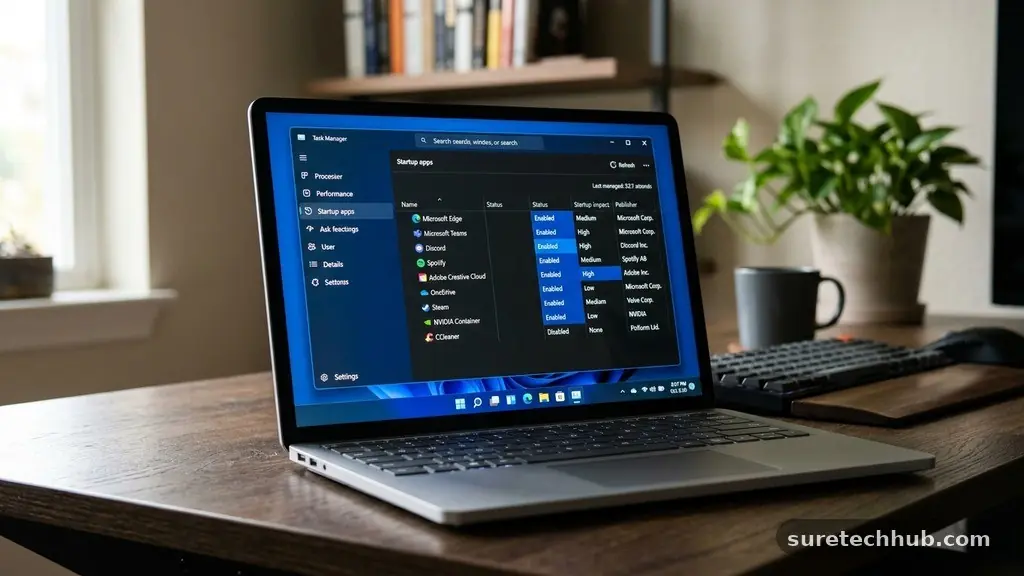
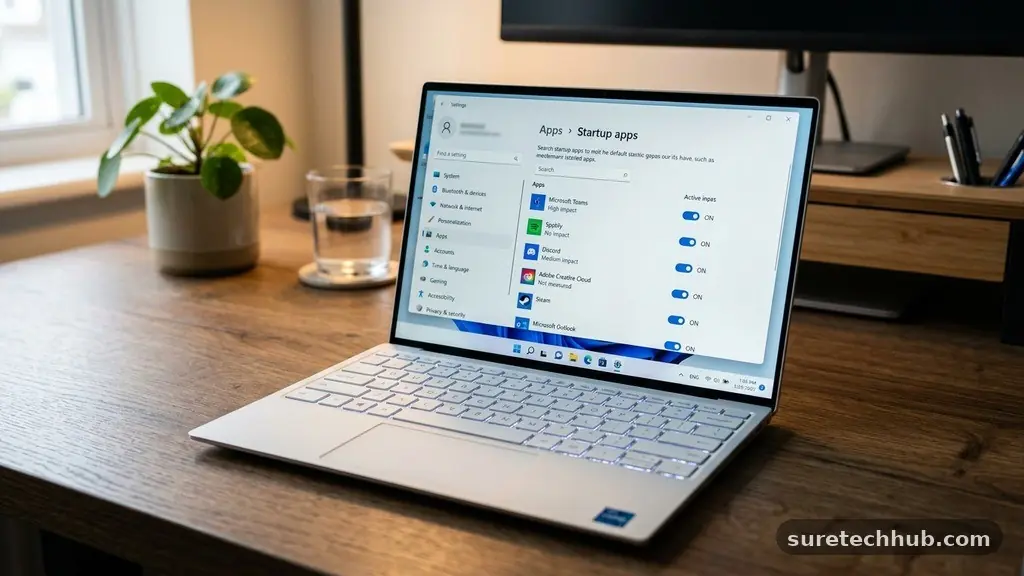
One of the most effective ways to ensure your machine stays snappy is by controlling what runs when you log in. Many programs install themselves to launch automatically, which consumes memory even if you aren’t actively using them.
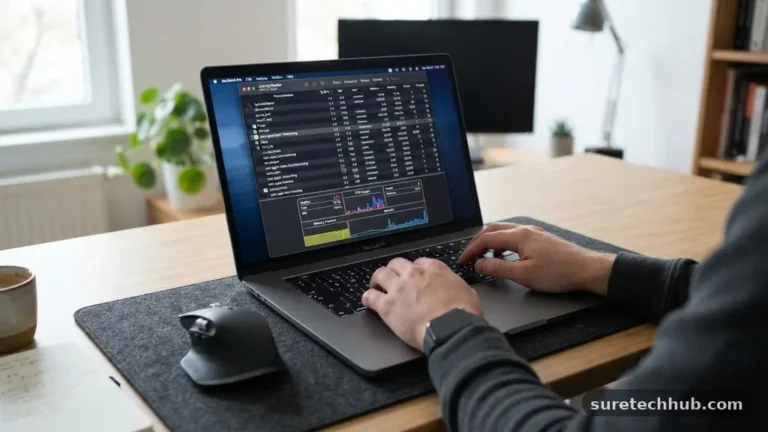
Open your Task Manager by pressing Ctrl + Shift + Esc and look at the “Startup apps” tab. You will likely see a long list of software enabled to run on boot.
Disable everything that isn’t essential for your daily workflow, such as messaging clients or update checkers for peripheral drivers. You should keep core security tools and audio drivers active to avoid errors.
Once you have pruned this list, your system will boot faster and have more free RAM available immediately upon reaching the desktop. This is a fundamental step in ensuring your machine runs as efficiently as possible throughout the day.
Visual Effects and Animation Tweaks
Windows 11 is designed with smooth animations and transparency effects that look modern but demand GPU cycles. If you want to squeeze out more performance, especially on older hardware, you can simplify the interface.
Search for “Adjust the appearance and performance of Windows” in your search bar to open the legacy control panel. Once there, select the “Adjust for best performance” radio button.
This will disable complex animations, shadows, and window transparency. While the interface may look slightly more utilitarian, the reduction in visual processing load is measurable.
You can also choose to leave “Smooth edges of screen fonts” enabled if you prefer to keep text looking crisp. This change helps the OS feel much more responsive when you are switching between windows or opening the start menu.
Reducing Telemetry and Background Activity
Microsoft collects a significant amount of diagnostic data to help improve their software, but this process involves constant background activity. You can limit this by going to “Privacy & security” and selecting “Diagnostics & feedback.”
Turning off “Send optional diagnostic data” prevents your PC from constantly packaging and uploading usage statistics. This reduces both CPU usage and network traffic, which is helpful if you have a limited internet connection.
Furthermore, review the “General” tab under privacy settings to disable tracking for app launches and personalized ads. When the OS isn’t constantly analyzing your habits to serve advertisements, it frees up processing cycles.
These background tasks often trigger at the most inconvenient times, such as when you are trying to focus on a heavy workload. By limiting these, you ensure that your hardware remains dedicated to your active tasks.
Optimizing Gaming and Multimedia Performance
If you use your machine for gaming, the Game Mode feature is a critical setting to verify. Navigate to Settings, click on “Gaming,” and ensure that “Game Mode” is toggled to the “On” position.
This feature prevents Windows Update from performing driver installations while you are playing and optimizes your resources for the active game window. It essentially instructs the OS to prioritize the game process over background system maintenance.
Another useful setting is found under the “Graphics” menu within the same Gaming section. You can manually assign specific high-performance profiles to your most demanding applications.
If you have a dedicated graphics card, ensuring your games are set to “High performance” rather than “Power saving” prevents the system from defaulting to an integrated chip. This simple manual override often resolves stuttering issues in complex visual applications.
Data Comparison of Performance Impacts
Understanding which settings offer the most tangible benefits can help you prioritize your time. While every system is different, the following table illustrates the typical impact of common adjustments on system resources.
| Setting Adjustment | Primary Resource Saved | Performance Impact |
|---|---|---|
| Startup App Pruning | RAM & Boot Time | High |
| Visual Effects Off | GPU & CPU Latency | Medium |
| Power Mode: Best Performance | CPU Clock Speed | High |
| Diagnostic Data Off | Network & CPU | Low/Medium |
Maintaining System Health Beyond Settings
Beyond changing settings, you should perform regular maintenance to keep your software environment clean. Using built-in tools like Disk Cleanup or the Storage Sense feature allows you to delete temporary files that accumulate over months of use.
You can find these by visiting the official Microsoft support pages for detailed instructions on managing drive space. Removing these files prevents the file system from becoming fragmented and bloated.
It is also important to audit your installed software periodically. If you have accumulated third-party tools that you no longer use, uninstall them completely.
Many of these tools leave behind services that continue to run in the background. A clean system is almost always faster than one cluttered with legacy software, regardless of how many performance tweaks you apply.
Frequently Asked Questions
Does disabling visual effects make Windows 11 look bad?
It makes the interface look more like classic Windows versions. You lose the blurred transparency and smooth fading animations, which some find makes the OS look “dated,” but others prefer the snappier feel.
Will turning off diagnostic data stop Windows updates?
No, disabling optional diagnostic data does not prevent your computer from receiving critical security patches. It only stops the transmission of non-essential usage telemetry to Microsoft servers.
Is it safe to disable all startup apps?
You should be careful not to disable hardware-critical services like audio drivers or antivirus software. If you accidentally disable something important, you can simply go back into the Task Manager and toggle it back on.
Does Game Mode actually improve frame rates?
Game Mode helps stabilize frame rates by preventing background tasks from spiking while you play. While it won’t turn a weak graphics card into a powerful one, it helps prevent micro-stuttering during intense gameplay.
How often should I check these settings?
Check them whenever you notice the system slowing down or after a major Windows update. Sometimes, updates can reset your power plans or re-enable background features that you previously turned off.
Conclusion
Optimizing your PC is a continuous process of aligning system behavior with your specific needs. By systematically addressing the Windows 11 settings you should change for better performance, you transform your machine from a generic setup into a finely tuned workstation. Whether you are focusing on gaming, creative projects, or general productivity, the cumulative effect of these tweaks is significant.
Start by addressing the most resource-heavy items like startup programs and power plans, then move into visual and privacy adjustments as needed. Consistency is the key to maintaining a fast and reliable experience.
If you find your machine still struggles after these changes, consider a clean installation of the OS to clear out years of accumulated digital debris. Enjoy the smoother, more responsive experience you have created.