Tech Maintenance Checklist: Simple Things to Do Every Month
Following a consistent tech maintenance checklist: simple things to do every month helps you avoid sudden hardware failures and software bloat. By dedicating just an hour to your digital tools, you extend the lifespan of your devices and keep your data secure. Whether you rely on a laptop for work or a smartphone for daily communication, small habits prevent major headaches.
This proactive approach ensures your equipment remains fast, responsive, and reliable throughout the year. You will find that regular upkeep is much easier to manage than recovering from a catastrophic system crash or a total loss of important files.
Digital Hygiene and Storage Management
Digital clutter accumulates rapidly, often slowing down your operating system and making it difficult to find important documents. Every month, start by reviewing your downloads folder and desktop. Delete installers you no longer need and move documents into organized, logical folders.
When your hard drive becomes too full, your computer struggles to manage temporary swap files, which directly impacts performance. Aim to keep at least 15% of your total storage capacity free at all times to ensure the system has room to breathe.
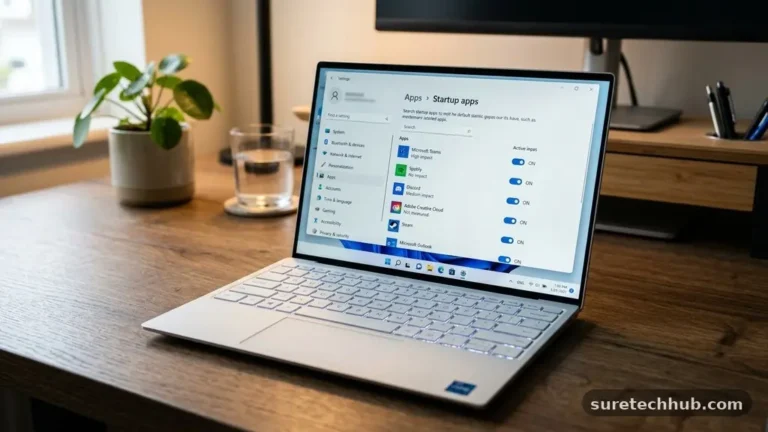
Beyond simply deleting files, you should clear your browser cache and remove unused applications. Many programs run background processes that consume memory even when you aren’t using them. Uninstalling software that hasn’t been opened in months clears space and improves boot times.
If you are unsure about a specific file, check the National Institute of Standards and Technology guidance on basic cybersecurity hygiene. Keeping your digital workspace clean is a fundamental part of a healthy system.
Security and Software Updates
Software developers release updates to patch vulnerabilities that hackers frequently exploit. Ignoring these prompts leaves your system exposed to risks that could have been prevented with a simple click.
Dedicate time each month to check for OS updates, firmware for your router, and patches for your primary applications. Enable automatic updates whenever possible, but perform a manual check to ensure nothing is stuck in a pending state.
Security maintenance goes beyond just software updates. Review your password manager to identify any accounts that have been compromised in data breaches. Change passwords for sensitive services like banking or email if you haven’t done so in the last six months.
This is also the perfect time to run a full scan with your preferred antivirus or antimalware software. Even if you practice safe browsing habits, a deep scan can catch dormant threats that might otherwise go unnoticed.
Physical Cleaning of Hardware
Dust is the silent enemy of high-performance electronics. Over time, fans pull microscopic particles into your laptop or desktop, clogging vents and trapping heat inside the chassis. Heat is the primary cause of premature component failure in modern equipment.
Use a can of compressed air to gently clear out the vents on your devices once a month. Ensure the device is powered off completely before you start this process to avoid static discharge or accidental damage.
Do not overlook your peripherals, such as keyboards, mice, and monitors. Keyboards harbor bacteria and debris that can cause individual keys to stick or become unresponsive. Turn your keyboard upside down and give it a shake, then use a clean, dry microfiber cloth to wipe down your screen and mouse.
Avoid using harsh household cleaners, as they can strip anti-reflective coatings off monitor displays. A little bit of care here prevents long-term grime buildup that is nearly impossible to remove later.
Backup Verification Procedures
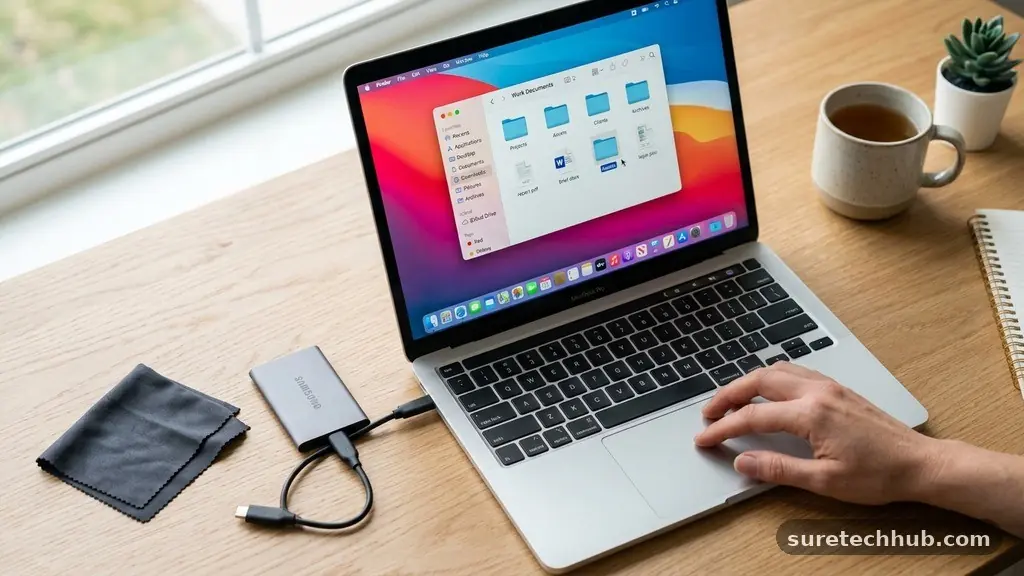
A backup is only as good as its last successful restoration. Many people assume their automatic cloud backups are working without ever verifying the integrity of the files. Once a month, attempt to open a few random files from your backup drive or cloud service to ensure they aren’t corrupted.
If you use an external hard drive, check the connection and ensure it is still mounting correctly to your system. Data loss is rarely a planned event, so testing your safety net is essential.
Consider the 3-2-1 backup rule as your monthly standard. You should have three copies of your data, on two different types of media, with one copy stored off-site. If you only rely on a single external drive, add a cloud-based service to your monthly routine.
This provides a geographical safeguard against fire, theft, or hardware failure. Documenting where your backups are stored and how to access them is a simple task that saves significant stress during an emergency.
Battery and Power Optimization
Lithium-ion batteries have a finite number of charge cycles before they begin to lose capacity. While you cannot stop the natural chemical degradation, you can manage how you use your power to slow the process down. Check your device’s battery health report in the system settings to see how much of its original capacity remains.
If you notice a sudden drop in health, it might be time to look into a battery replacement. Avoid leaving devices plugged into a charger at 100% for weeks on end if they have a “smart charging” feature enabled.
Power cables and bricks also require a quick monthly inspection. Look for fraying near the connector ends or heat damage on the power adapter itself. A damaged cable is not just a performance issue; it is a potential fire hazard.
If you notice a cable getting unusually hot during use, discontinue use immediately and replace it with a certified, high-quality alternative. Maintaining your power infrastructure ensures your equipment stays charged safely and efficiently.
Network and Connectivity Checks
Your home network is the backbone of your digital life, yet it is often ignored until the internet stops working. Monthly maintenance for your router starts with a simple power cycle to clear the cache and refresh IP assignments.
While the router is rebooting, check the physical cables connecting your modem to the wall. Loose connections can lead to intermittent packet loss and slow speeds that are often misdiagnosed as ISP issues.
Review the list of devices connected to your Wi-Fi network through your router’s administrative portal. If you see unknown devices, change your Wi-Fi password immediately to prevent unauthorized access. This is also a good time to check for router firmware updates, which often include critical security patches.
If your Wi-Fi signal is weak in certain rooms, consider adjusting the placement of your router. Moving it to a central, elevated location can drastically improve coverage without requiring expensive new equipment.
Performance and System Benchmarks
To truly understand how your tech is aging, you need to track its performance over time. Create a simple table to log the startup times and basic responsiveness of your primary machines.
This helps you notice gradual performance degradation that you might otherwise ignore until the system feels unusable. If you notice a significant slowdown after a specific update, you will have the data needed to troubleshoot effectively.
| Task Category | Frequency | Priority Level |
|---|---|---|
| Data Backup | Monthly | Critical |
| Security Patches | Monthly | High |
| Dust Removal | Monthly | Medium |
| File Organization | Monthly | Low |
Tracking these metrics gives you a baseline for what “normal” looks like for your specific hardware. You can also use this time to review your subscription services. Many users pay for software or streaming apps they no longer use, which is a waste of resources.
A monthly audit of your digital subscriptions ensures you are only paying for tools that provide actual value. This habit keeps your budget in check while keeping your digital environment lean.
Frequently Asked Questions
Should I turn my computer off every night?
Modern computers are designed to handle sleep modes, but a full restart once a week is beneficial. Restarting clears the RAM and stops background processes that might be hanging, which helps maintain system responsiveness over the long term.
What is the best way to clean a monitor screen?
Use a clean, dry microfiber cloth for light dust. If there are smudges, slightly dampen the cloth with distilled water or a dedicated screen cleaning solution. Never spray liquid directly onto the screen, as it can seep into the bezel and damage the electronics.
How do I know if my hard drive is failing?
Listen for clicking or grinding noises coming from your machine. If you notice files taking a long time to open, or if you receive frequent “disk read error” messages, back up your data immediately and check your drive health using built-in system tools.
Is it necessary to use a surge protector?
Yes, a high-quality surge protector is essential for protecting your equipment from power spikes caused by lightning or grid fluctuations. Ensure your surge protector is rated for the total wattage of the devices plugged into it and replace it every few years, as the internal components wear out after absorbing surges.
What should I do if a device is running very hot?
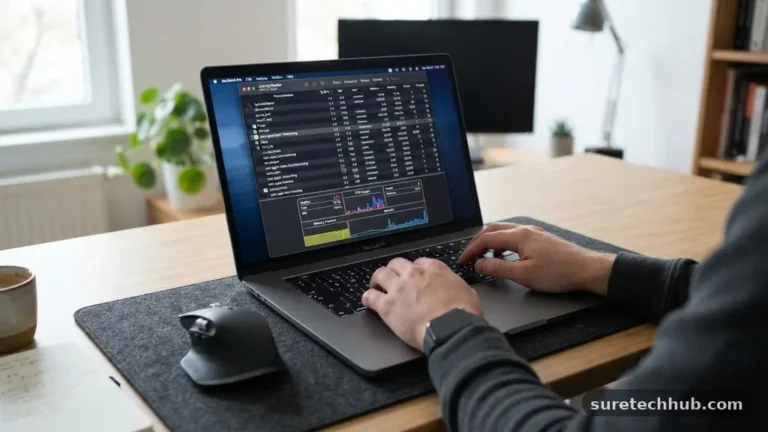
First, ensure the vents are not blocked by blankets, pillows, or dust. If the device remains hot, check your task manager to see if a specific program is using an unusually high percentage of the CPU. If the issue persists, the internal thermal paste may need replacement or the cooling fan might be failing.
Maintaining Your Digital Ecosystem
Incorporating a tech maintenance checklist: simple things to do every month into your routine transforms how you interact with your hardware. By addressing physical cleanliness, software security, and data integrity on a predictable schedule, you remove the stress of unexpected failures. You will find that your devices perform better for longer, saving you money on premature replacements and repairs.
This proactive cycle of care is the most effective way to protect the tools that power your daily life. Start with just one of these tasks today and build the habit gradually.
Your future self will appreciate the reliability and speed of a well-maintained system. Staying consistent with these small actions creates a stable foundation for all your digital work and recreation.